Launch Stellar Migrator for Outlook. On the Create migration job window, enter a name for migration in the Job Name field. Next, select whether you want to migrate multiple mailboxes or a single mailbox. You can also choose the option to migrate mailboxes using a CSV with the already mapped source and target mailboxes. Then, click Next.
On the next screen, you’ll be asked to select the source. Click on Select Files and then choose the OST or PST files you want to migrate. You can select both OST and PST files together. After that, you will see the selected files listed with their names, paths, and size in KBs. Click Next.
On the next window, you need to choose the target environment where you want to migrate mailboxes from the selected OST/PST files. You will see three options: Exchange Server, Microsoft 365, and PST. Select the option based on your requirements and click Next to go to the target.
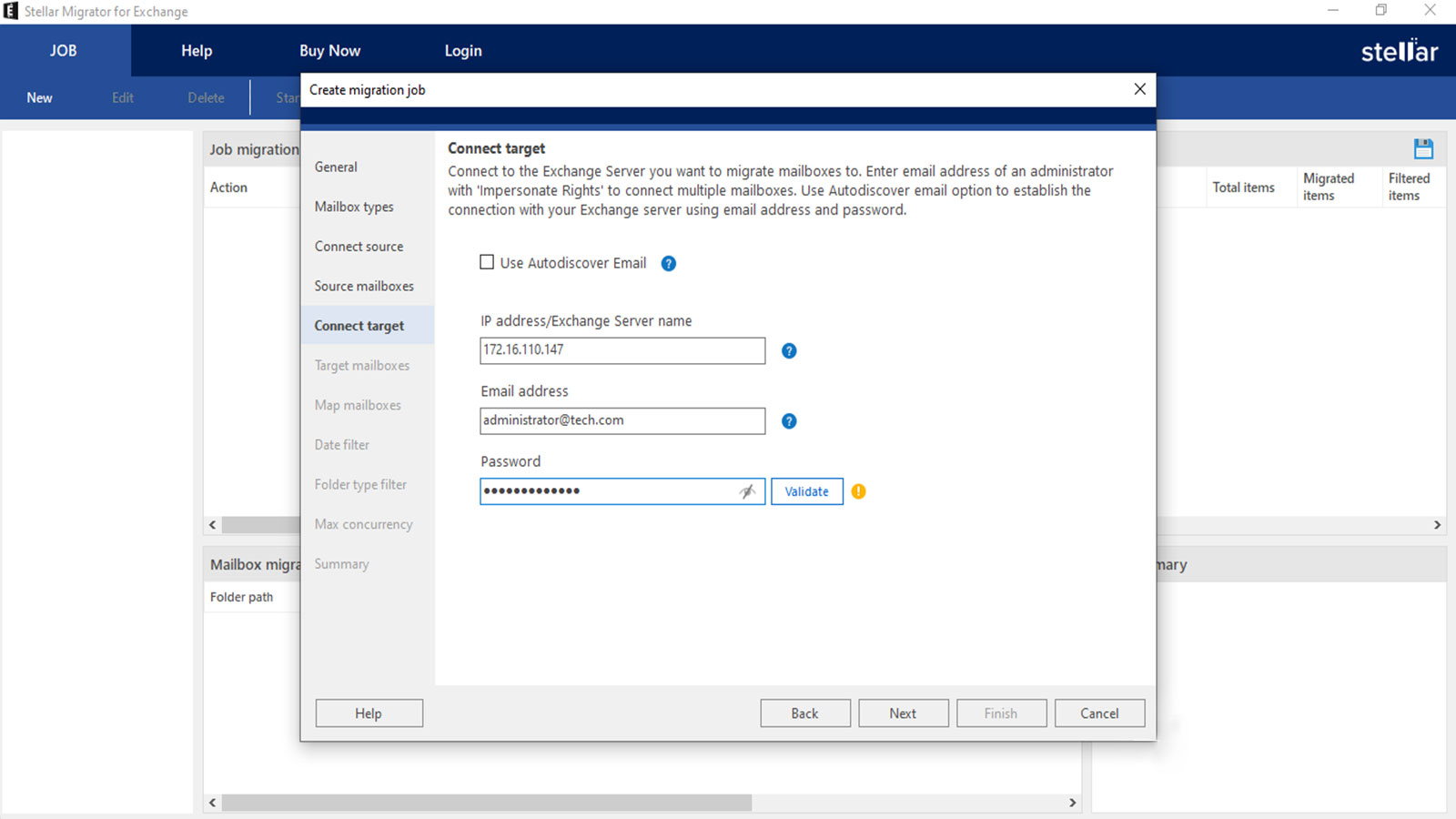
If you want to migrate to the Exchange Server, you need to connect to the server. For this, there are two options: Use Autodiscover Email or enter the credentials of administrator (with impersonation rights) manually. After validating the credentials, click Next to proceed.
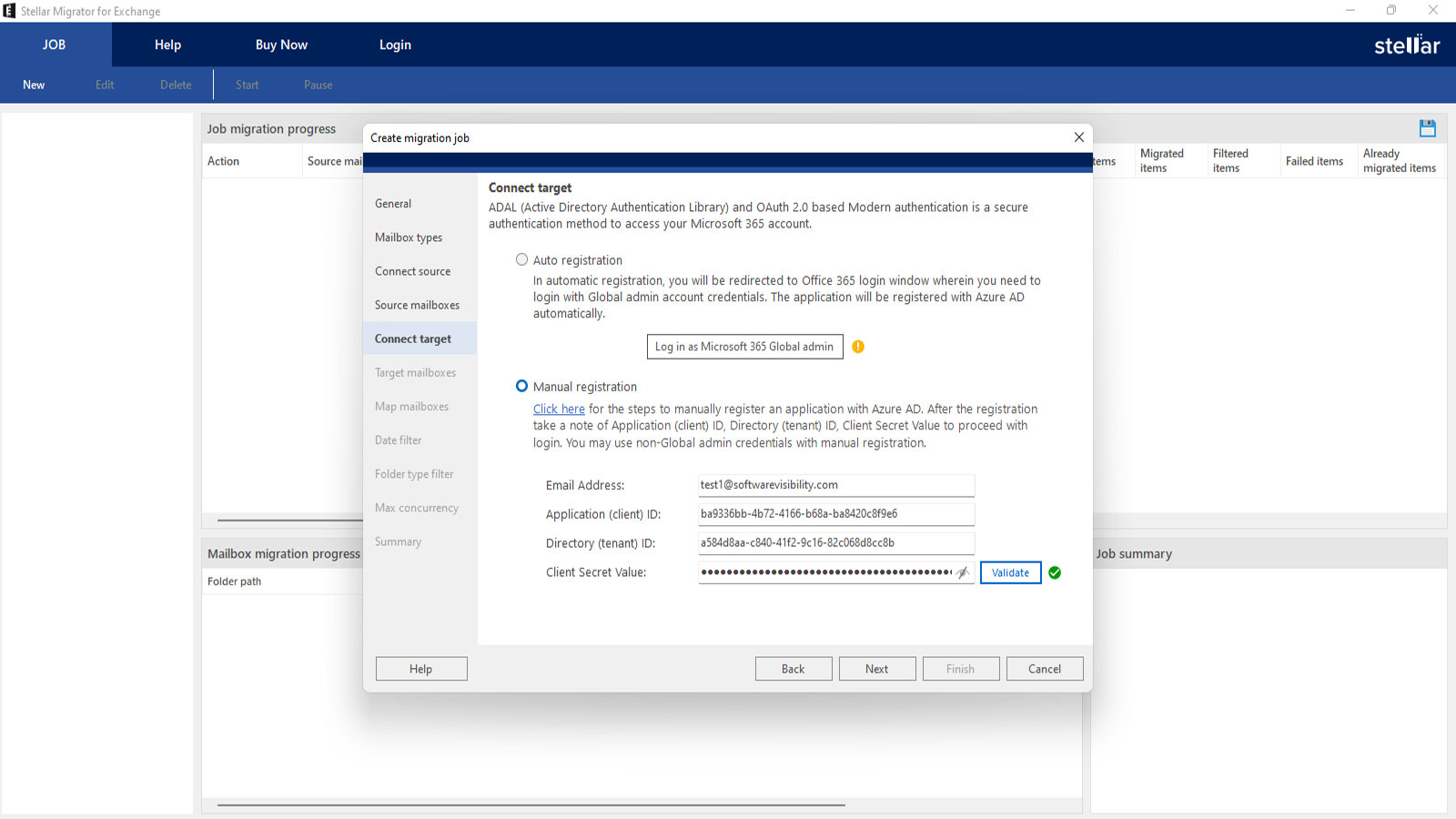
If you want to migrate to Microsoft 365, you need to connect to the server. For this, there are two options: Auto Registration and Manual Registration. The Auto Registration option allows you to automatically connect to Microsoft 365 by using the global admin credentials. Selecting the Manual Registration option requires you to manually enter the details, such as Email Address, Application (Client) ID, Directory (Tenant) ID, and Client Secret Value. After validating the credentials, click on Next to proceed.
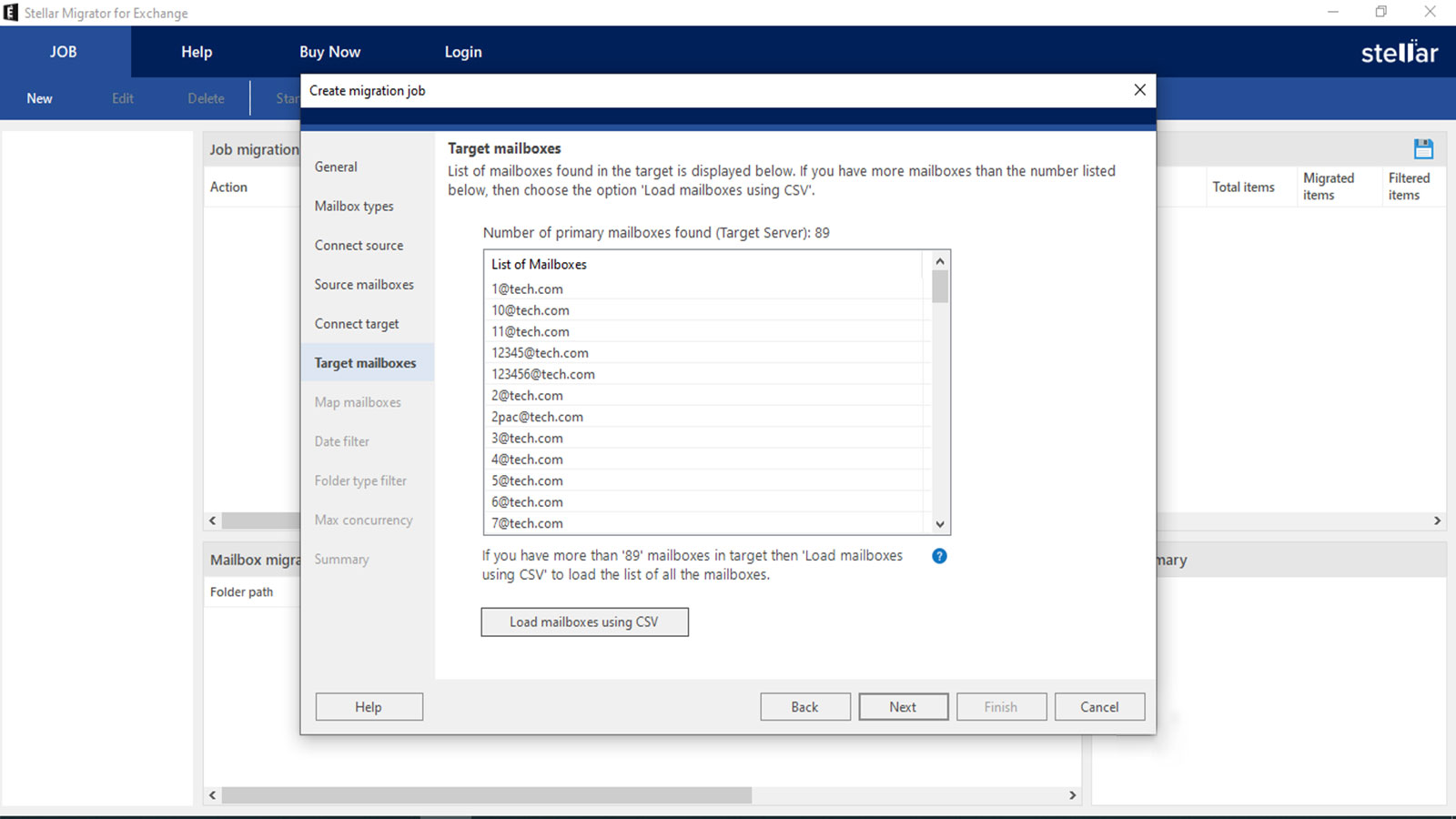
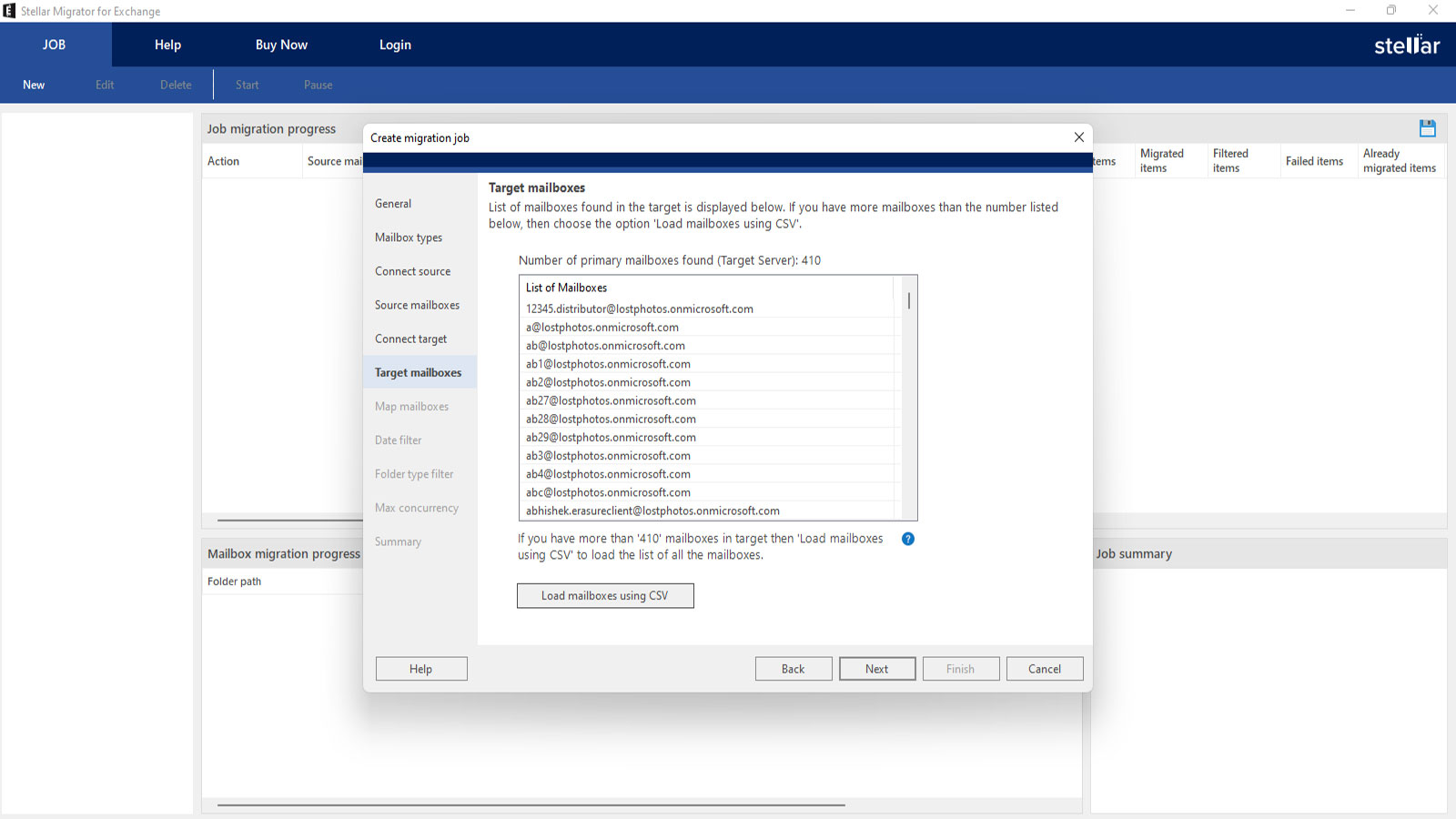
On the next screen, you will see a list of mailboxes found on the target server. In case, there are additional mailboxes, you can choose the Load Mailboxes Using CSV option to upload a CSV file containing all the mailboxes. This allows you to preview the mailboxes from the target server (Exchange Server or Microsoft 365) before proceeding with the migration. Click Next to proceed.
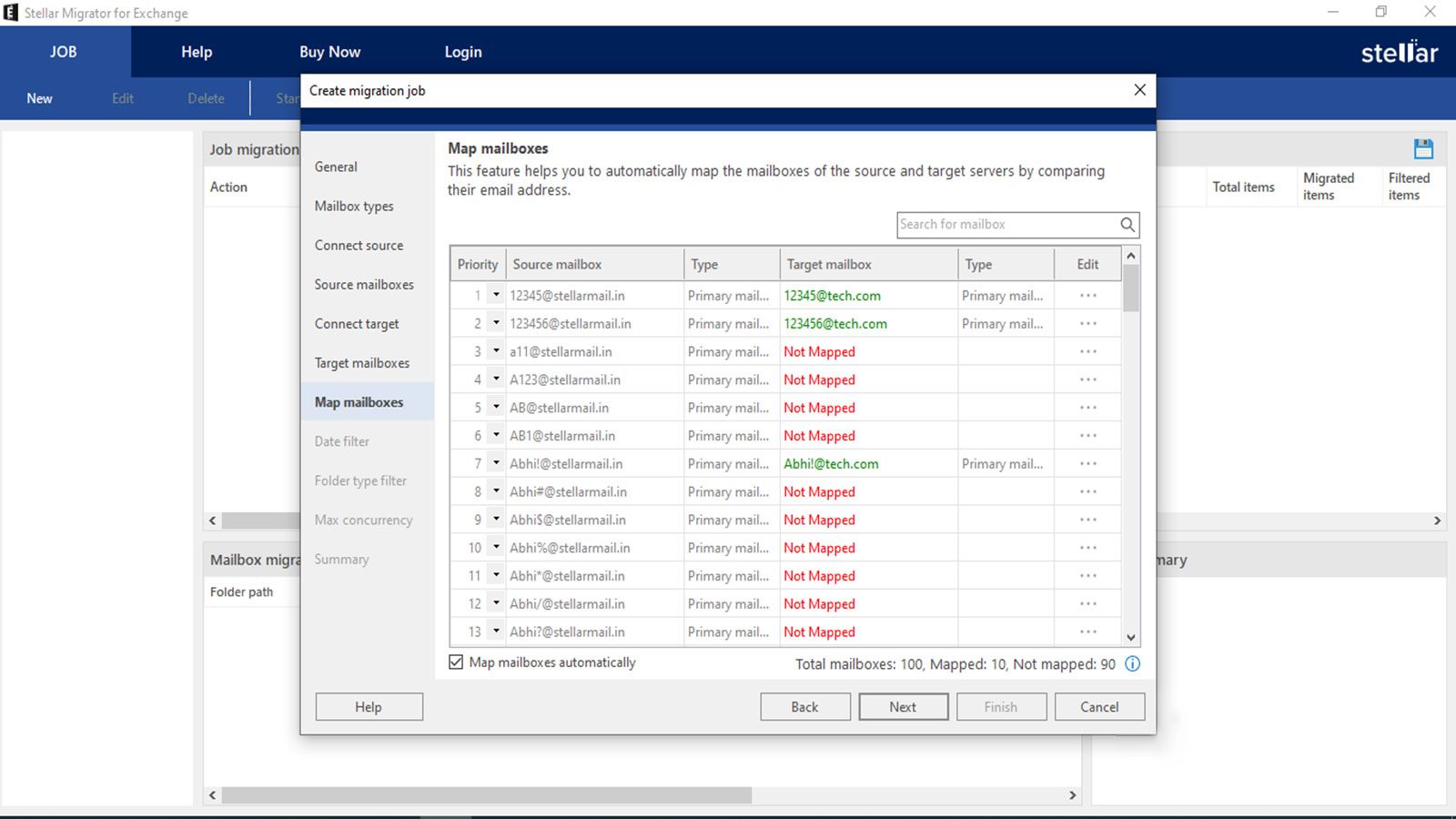
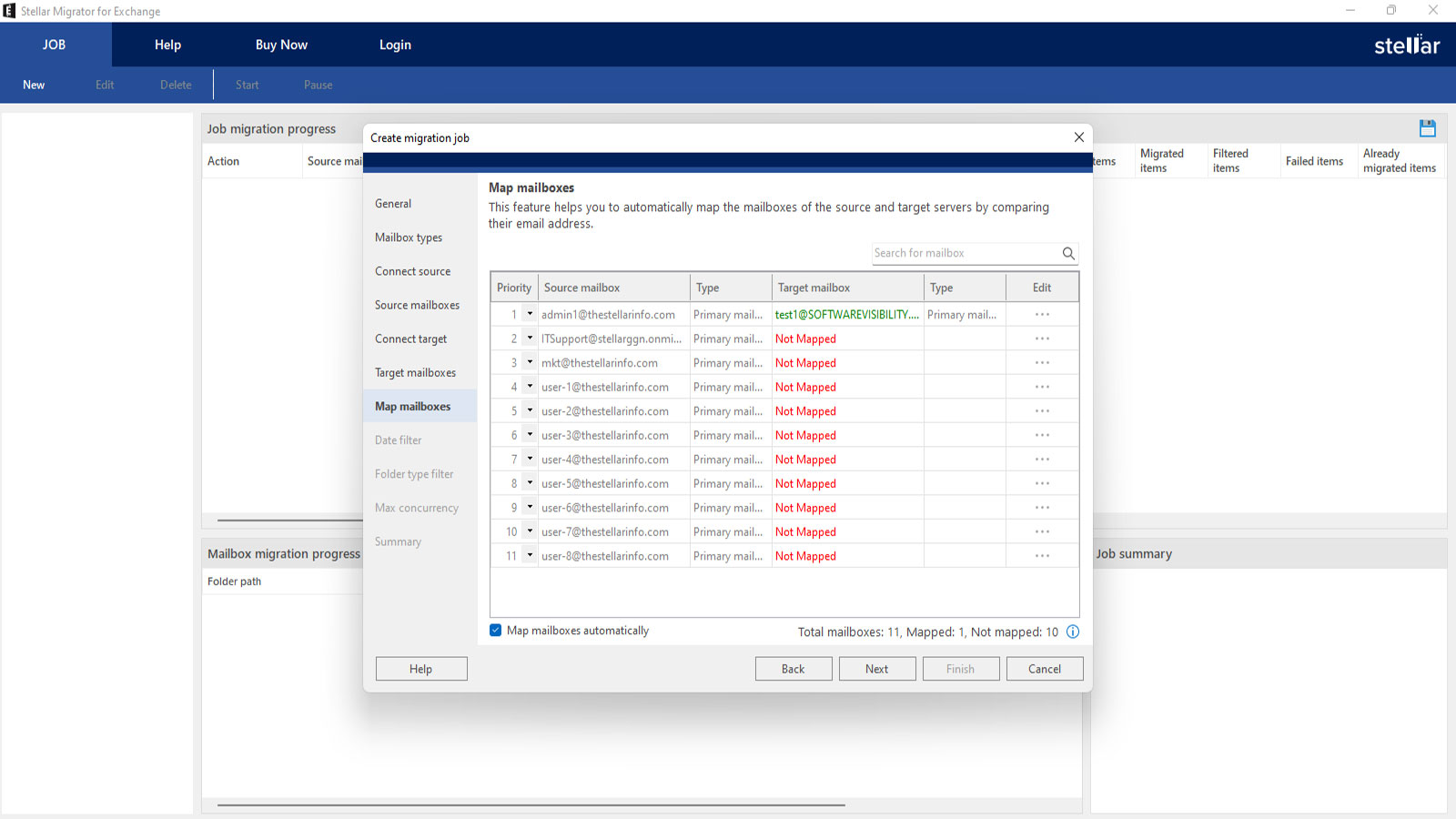
The software will automatically map the mailboxes from the source (OST/PST) to the target (Exchange Server or Microsoft 365). You can click on the Edit button to change the mapping. Moreover, in the Priority column, you can change the priority order (which mailbox will be migrated first). For moving the OST/PST data in a specific mailbox folder, you can tap the Click to Specify option. When done, click on Next.
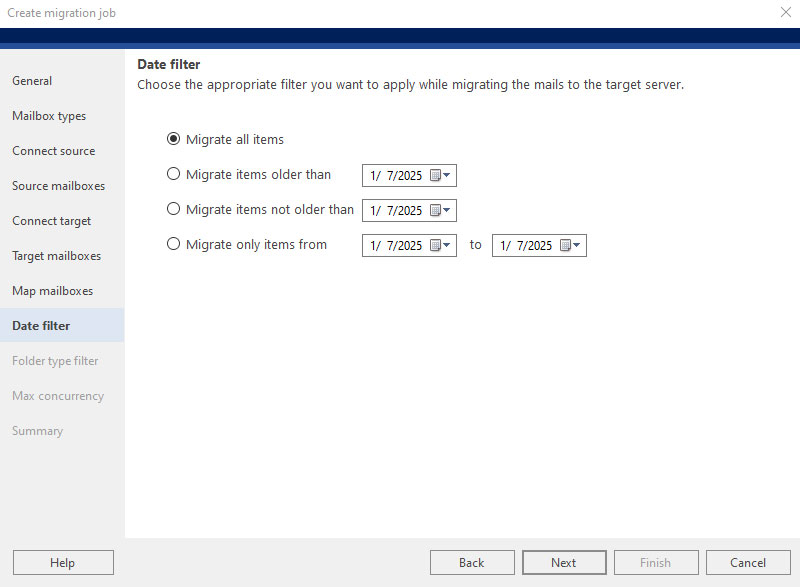
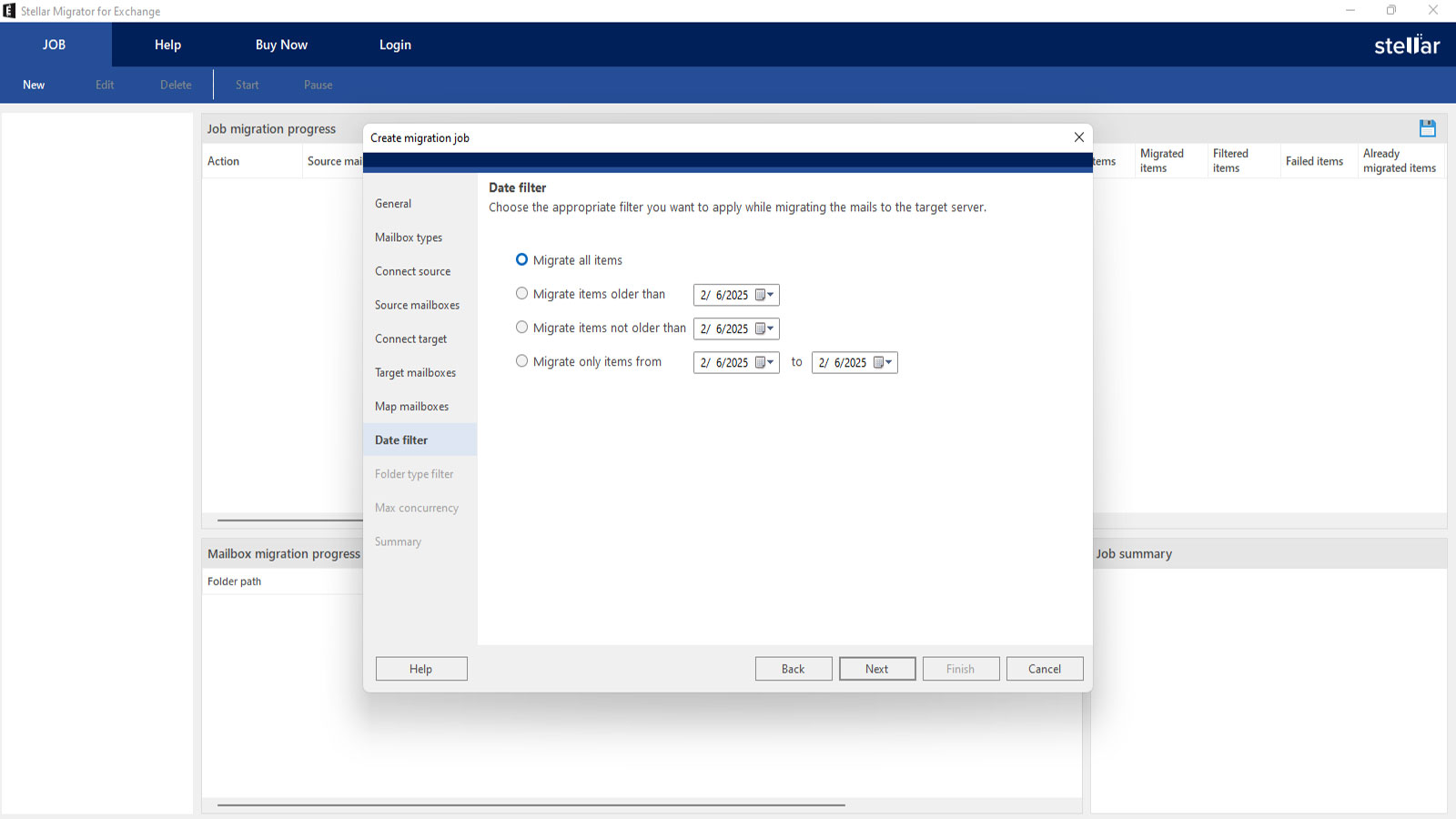
You can use date filter to select items for migration based on date. You can choose to migrate all items, migrate items older/not older than a particular date, or migrate only items within a specific date range. After selecting the required option click Next.
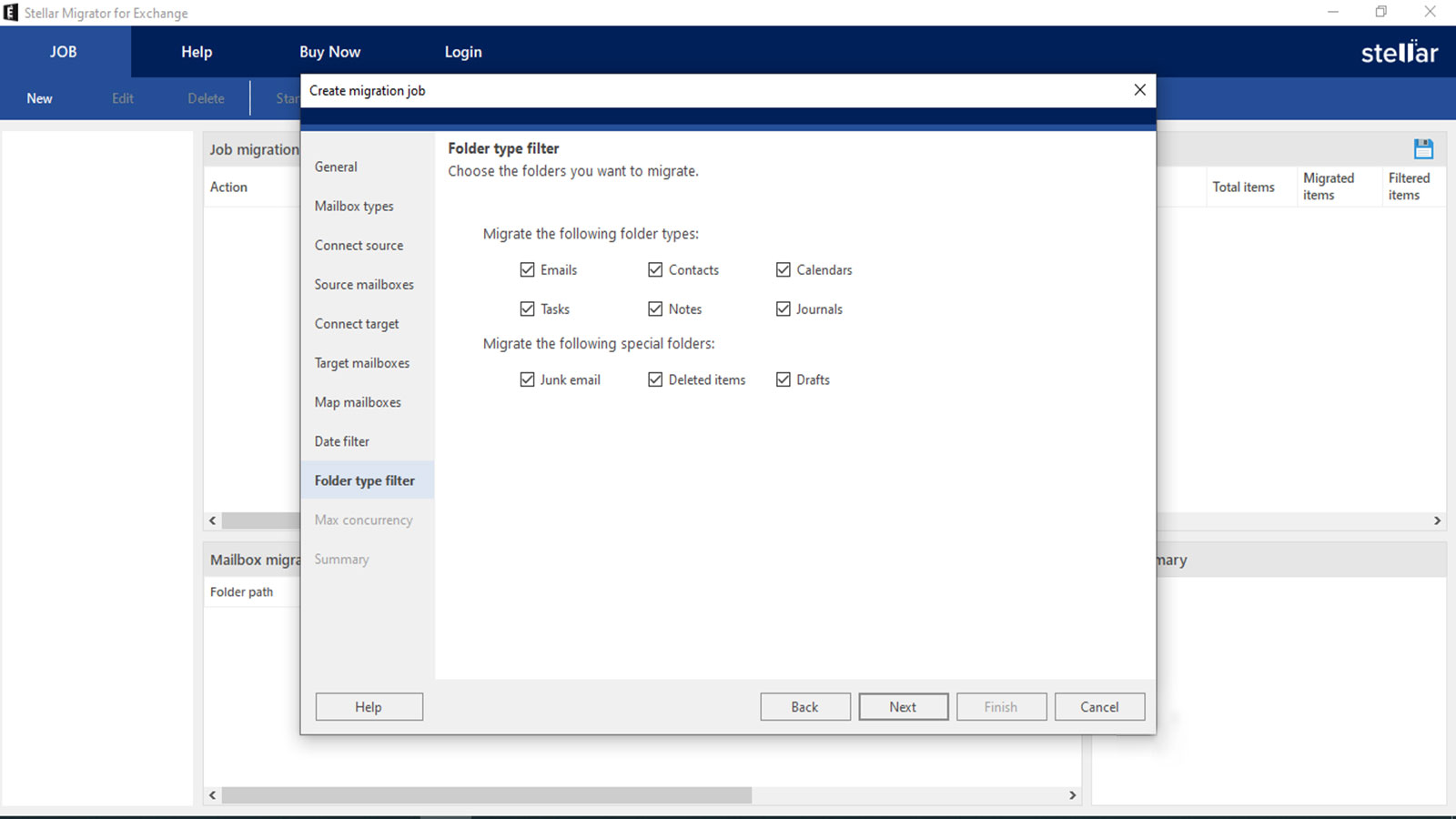
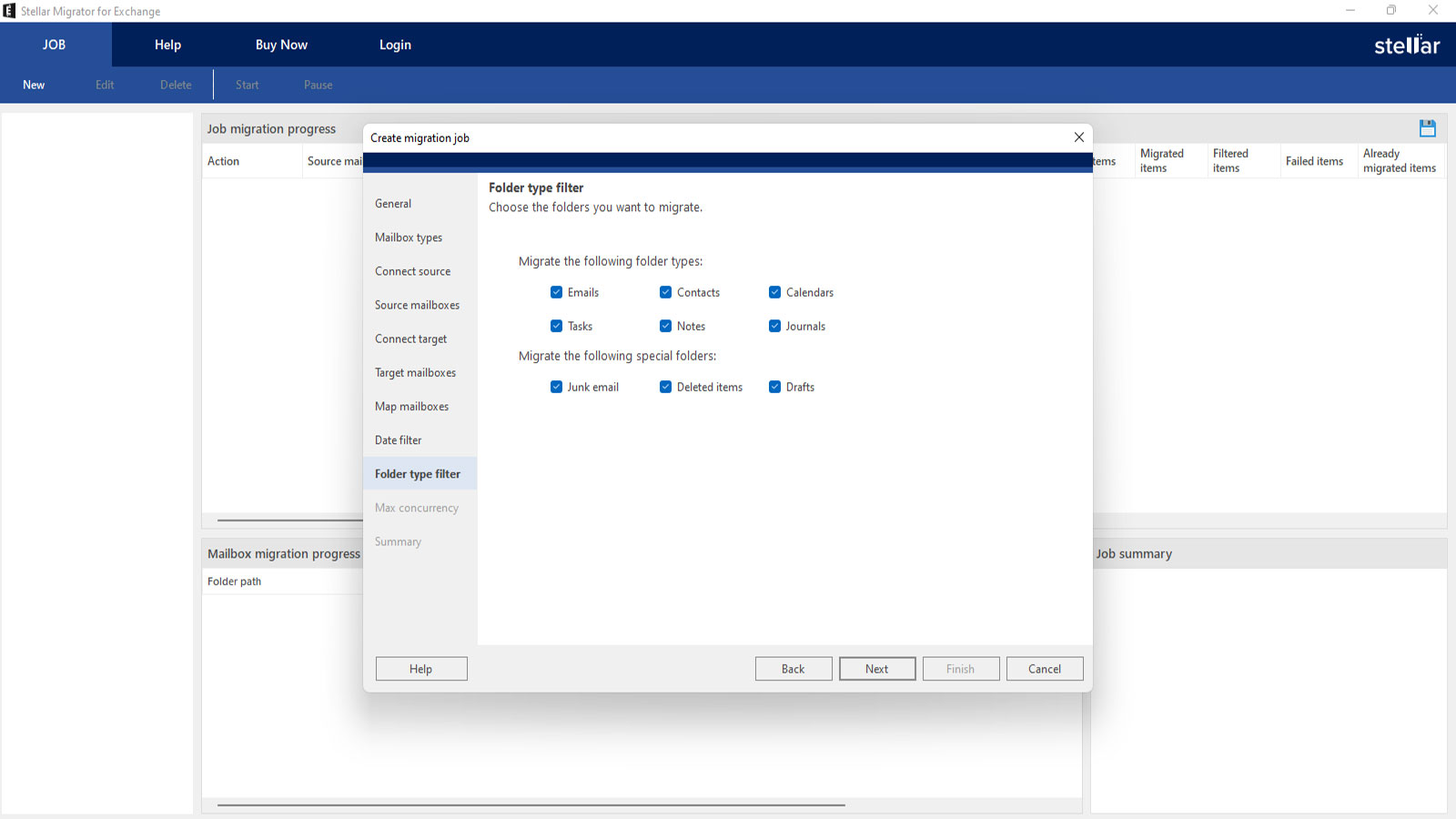
You can migrate the data based on specific folder types. You can include or exclude data from folders, such as Emails, Contacts, Tasks, Calendars, Journals, and Notes. You can also exclude or include Drafts, Deleted Items, and Junk Email folders. After the selection, click on Next.
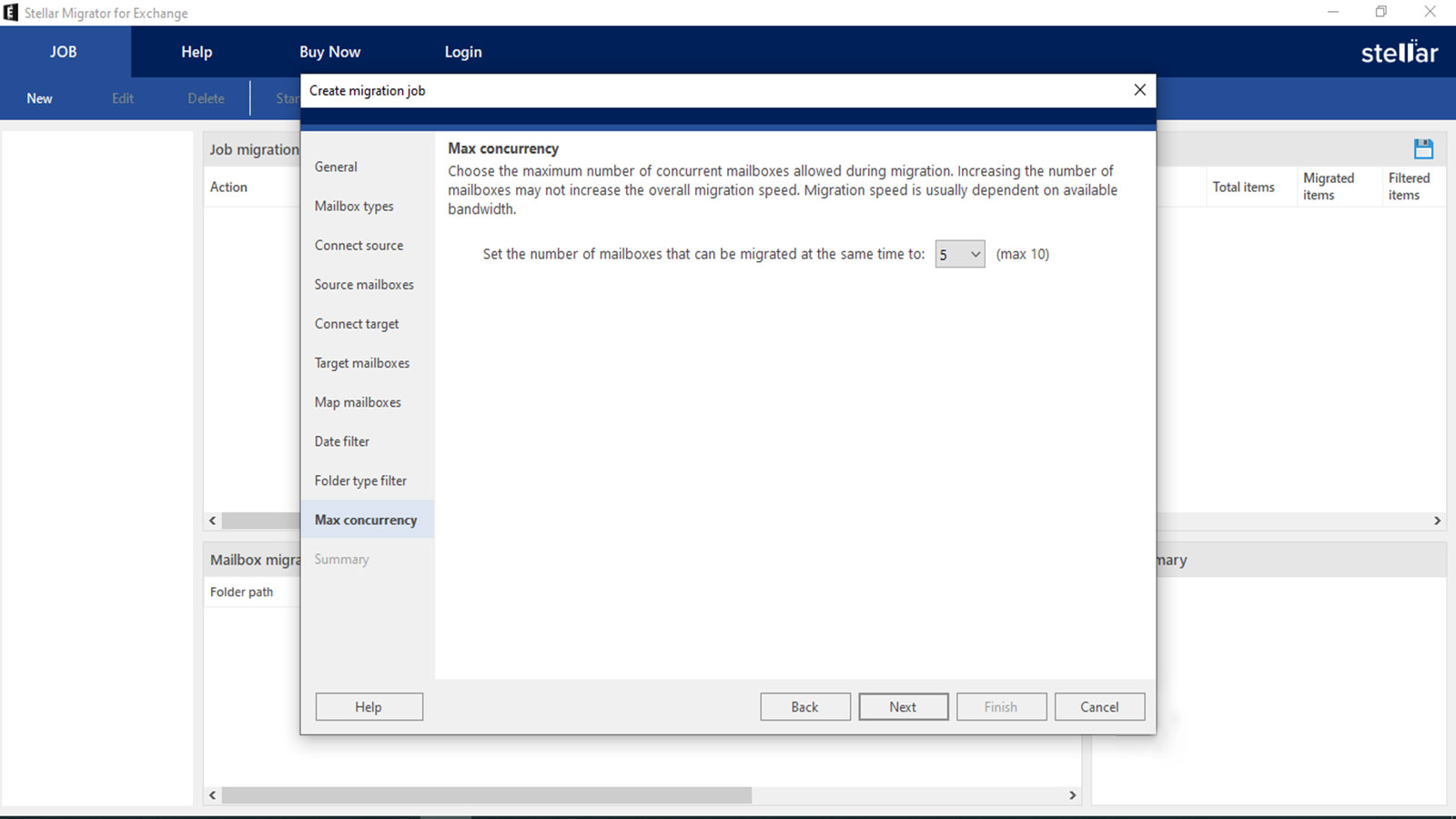
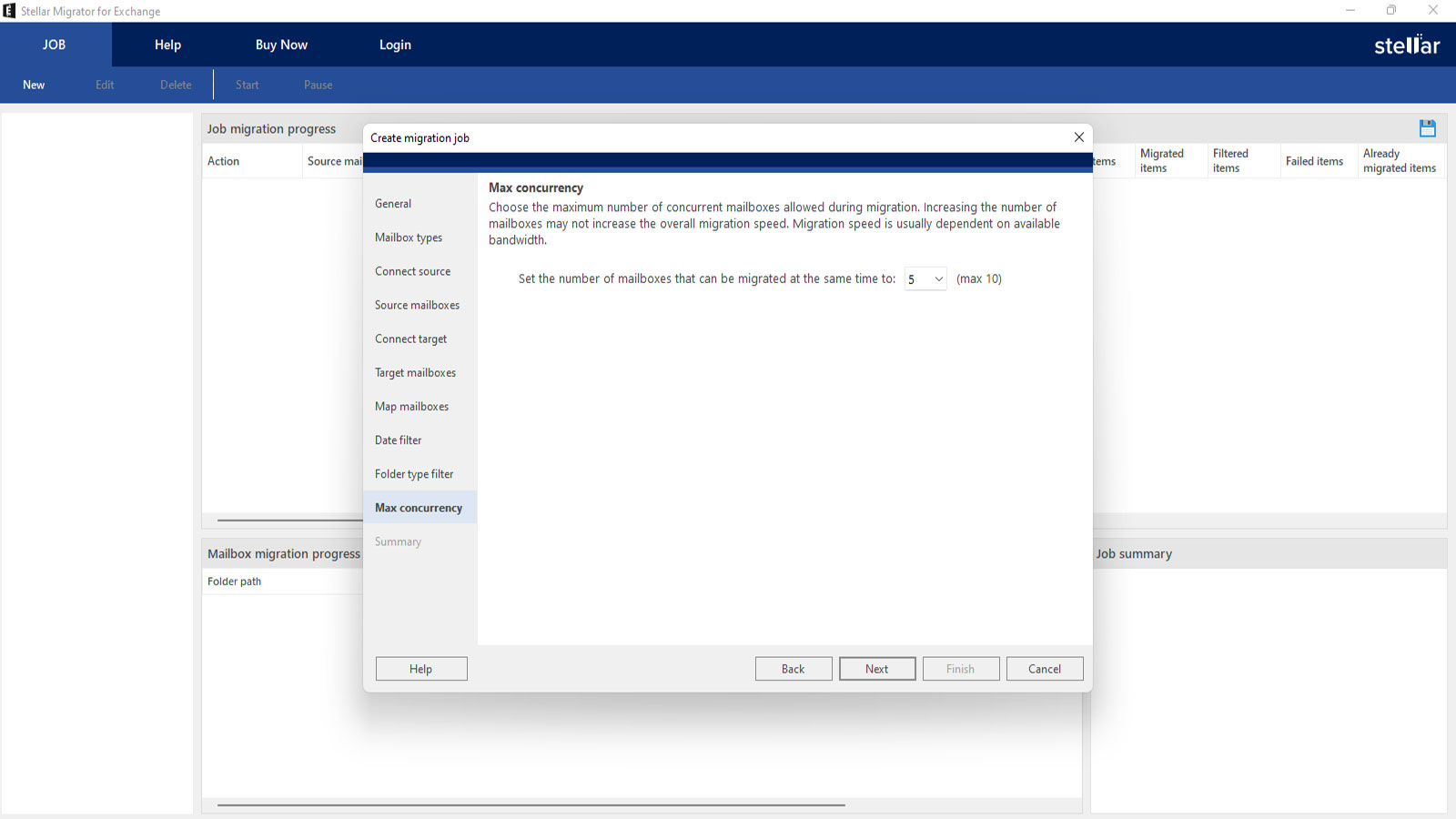
On the next screen, choose the number of mailboxes to be migrated simultaneously. The maximum limit is 10 mailboxes. This allows you to balance the migration speed with the available system resources. After setting the limit, click Next to proceed.
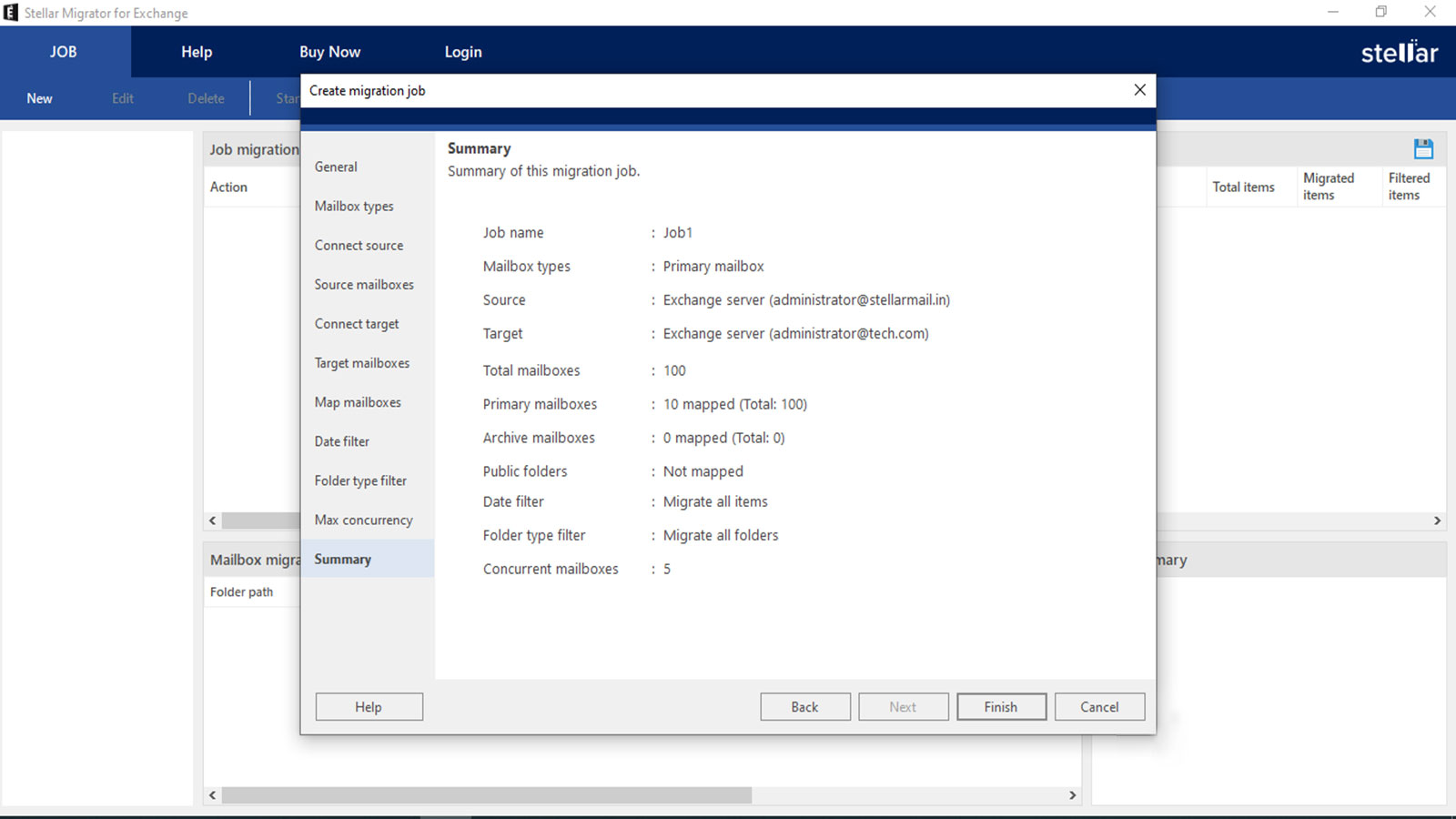
You will see a summary window with complete details of the migration job. Review the information and confirm all the details before proceeding with the migration. This is a crucial step to ensure that your migration settings are accurate and aligned with your goals. Once you're satisfied, click Finish. A Job Created dialog box will appear. Click OK.
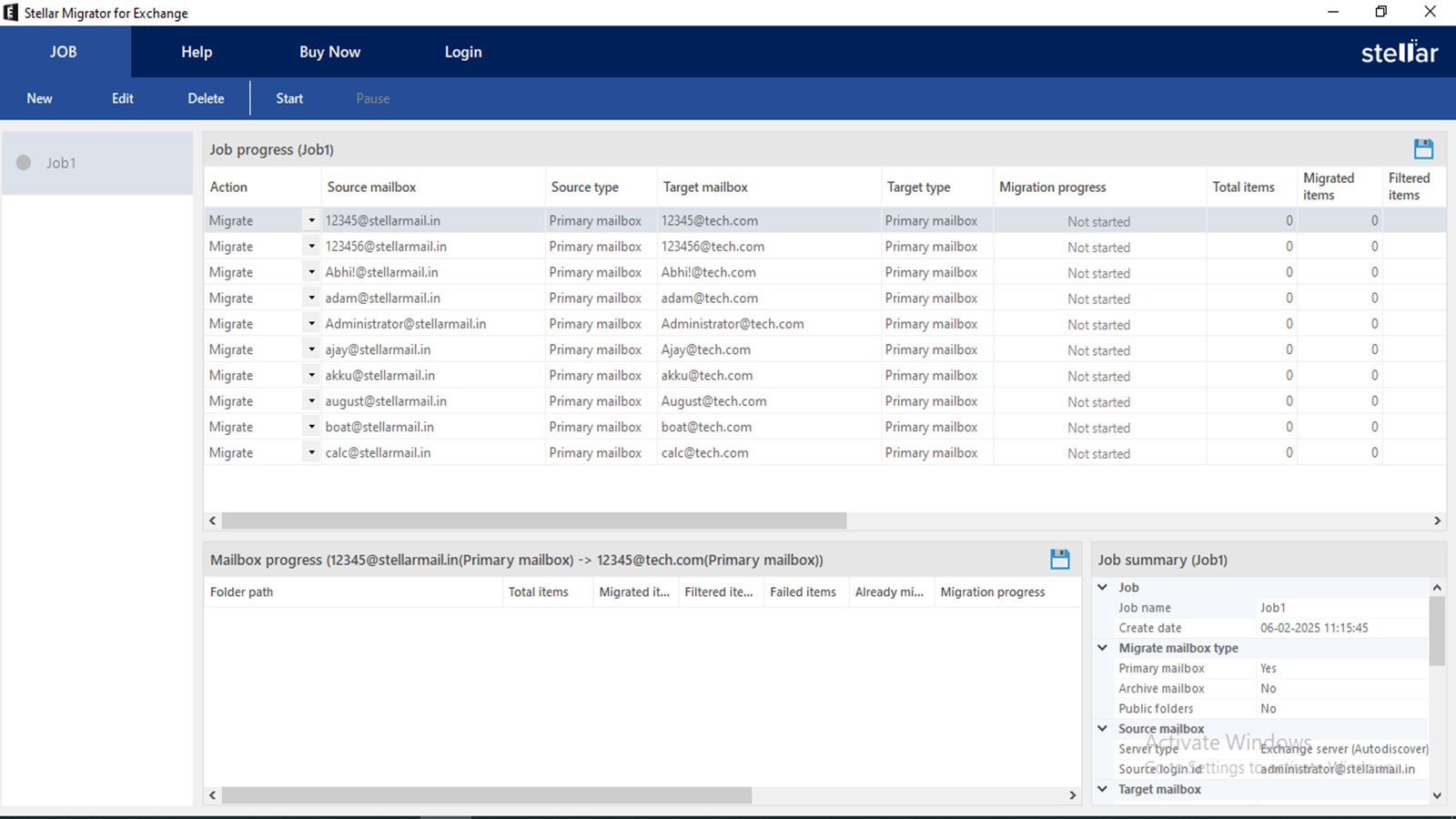
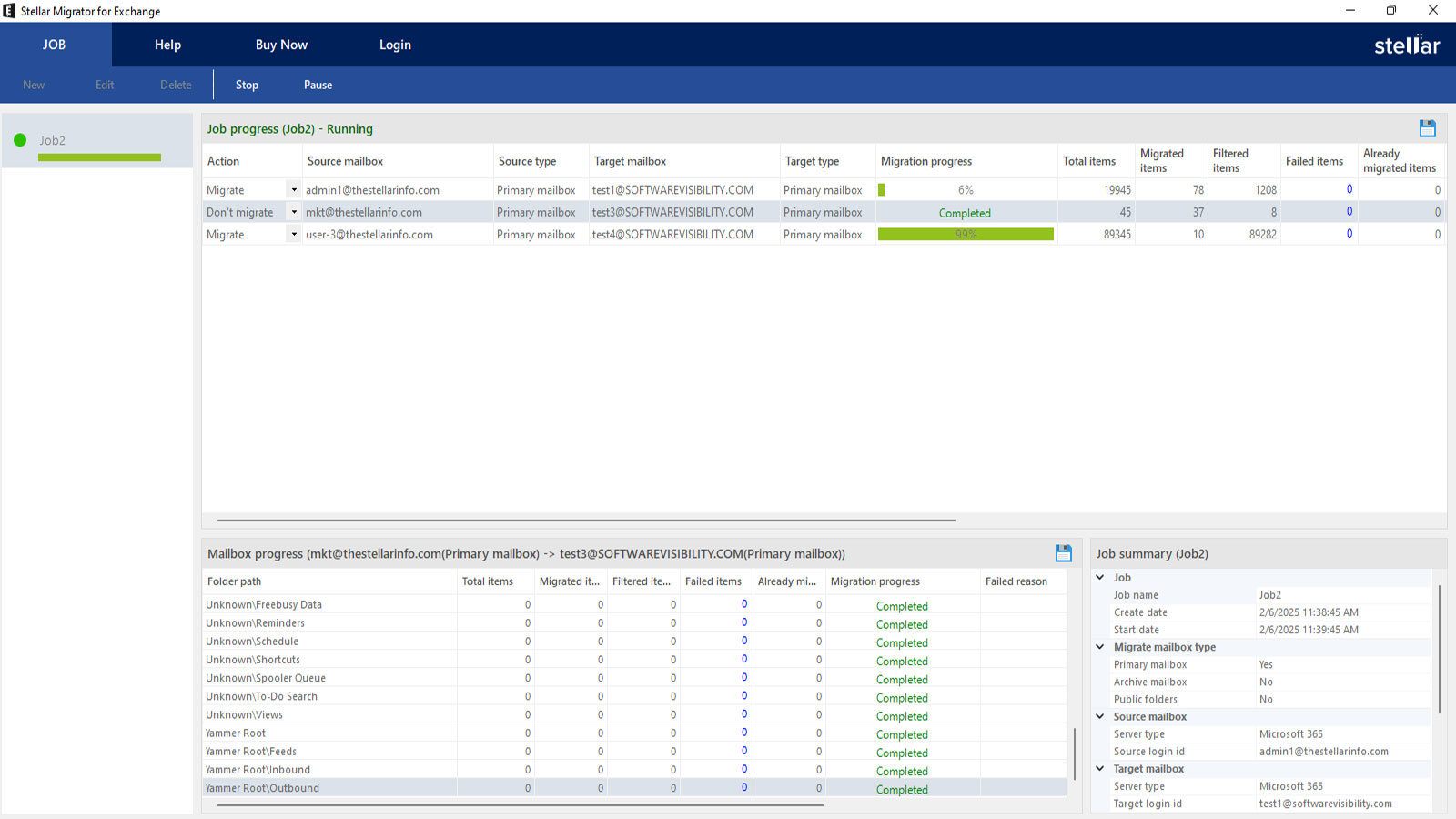
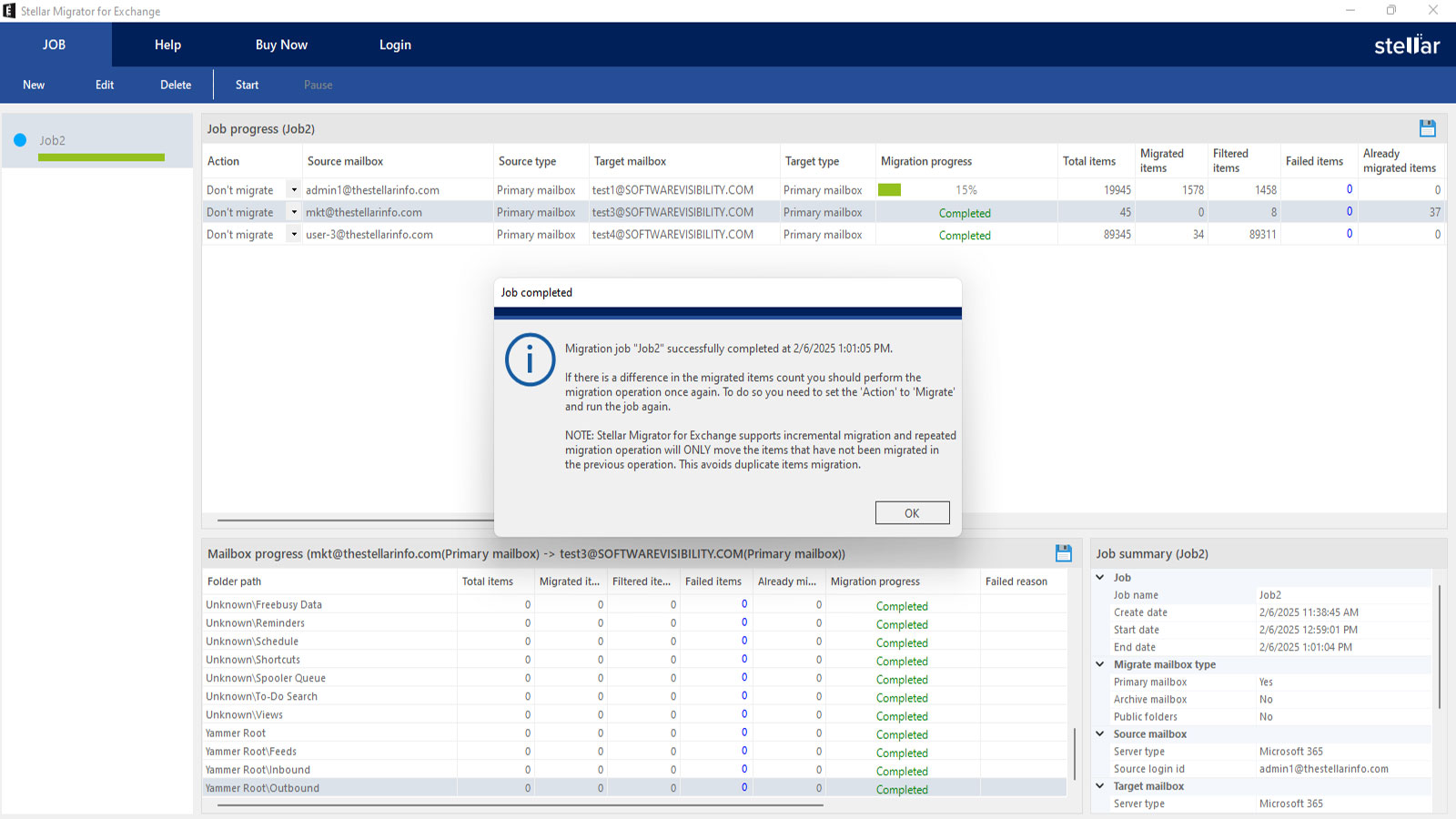
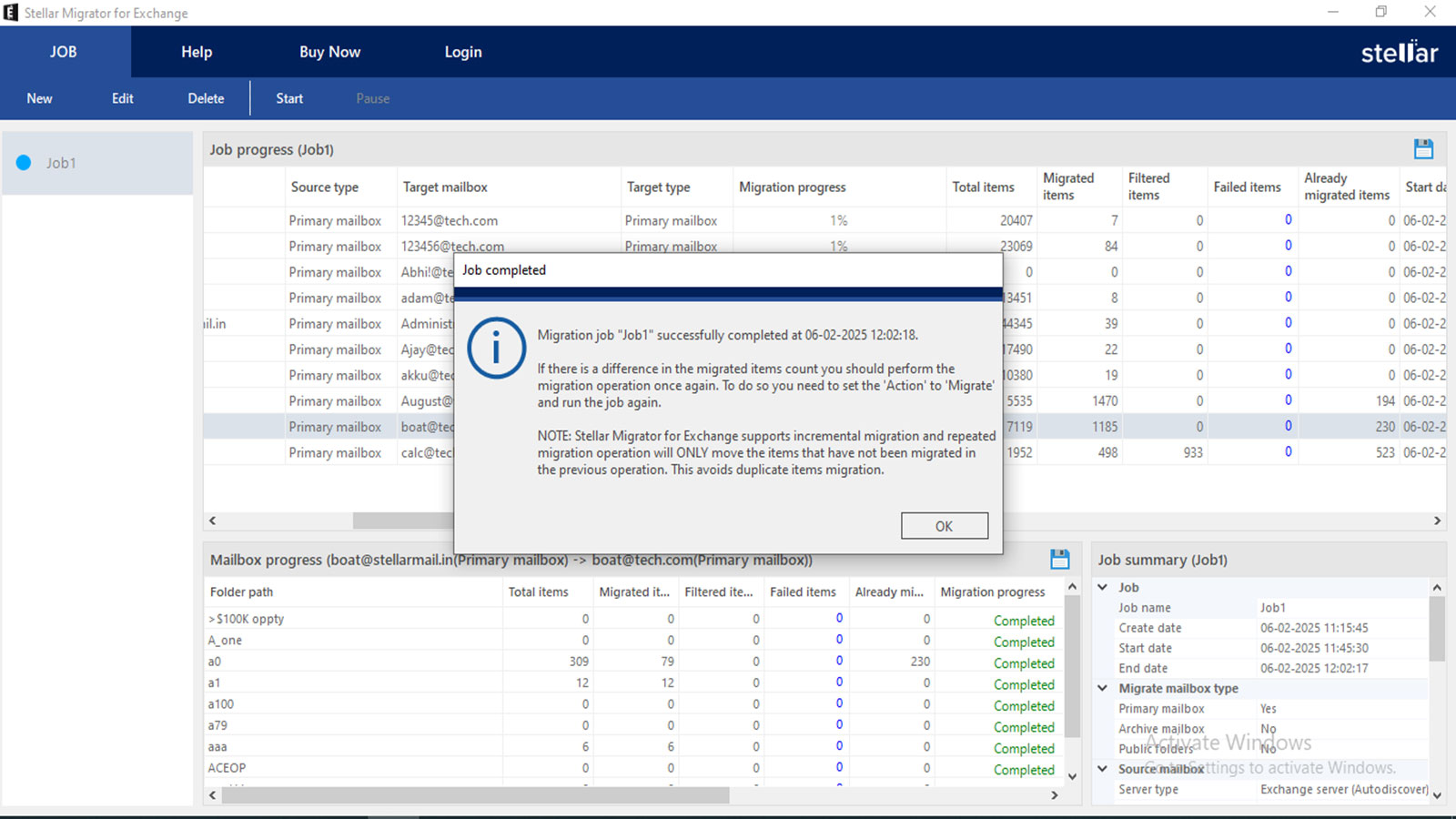
After reviewing the information, click the Start button in the Job ribbon. This will start the migration process. You can view the overall Job Progress or individual Mailbox Progress. If you want to pause or stop the migration process, you can do so from the Pause button in the Job ribbon, but it is not advisable.
Once the migration starts, you cannot edit the source and target server connections for the given job. However, it is possible to edit details, like date filter, folder type filter, max concurrency value, and credentials for Microsoft 365 and Exchange Server (if expired).
If you have chosen to export OST/PST files data to PST, the Connect Target and Target Mailboxes steps will be skipped automatically. On the Map mailboxes screen, you can browse and select the Destination File Path where the PST files will be stored. In case, you haven’t specified a path, the files will be stored in the source location path. You can also rename the PST in the target. To create folder in the resultant PST, enter a name under the Name column. To delete the PST/OST row from the list, choose the Remove option. If you want to split the resultant PST file, select the Auto Split Output PST checkbox. Click Next and follow the prompts to complete the process.
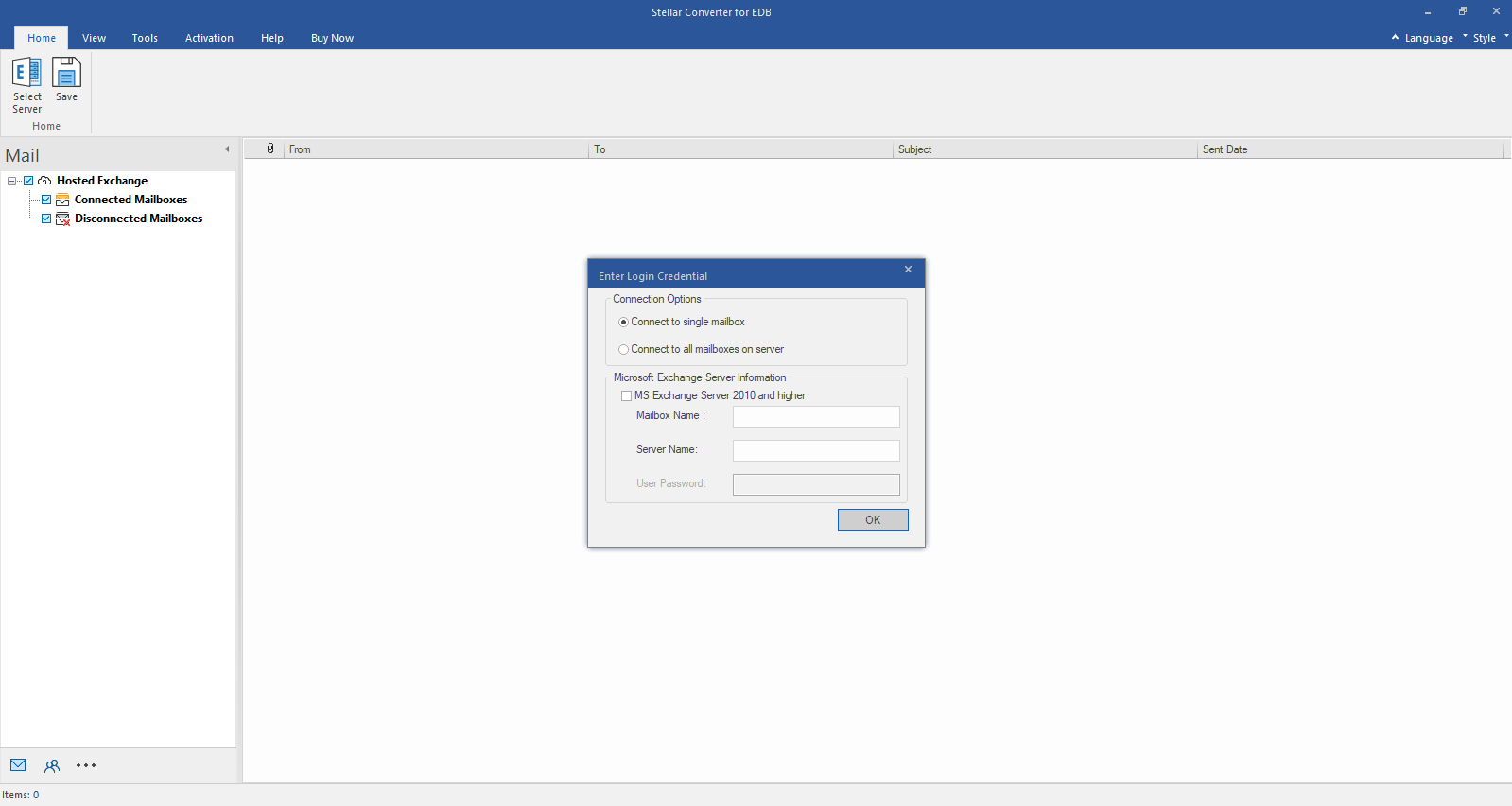
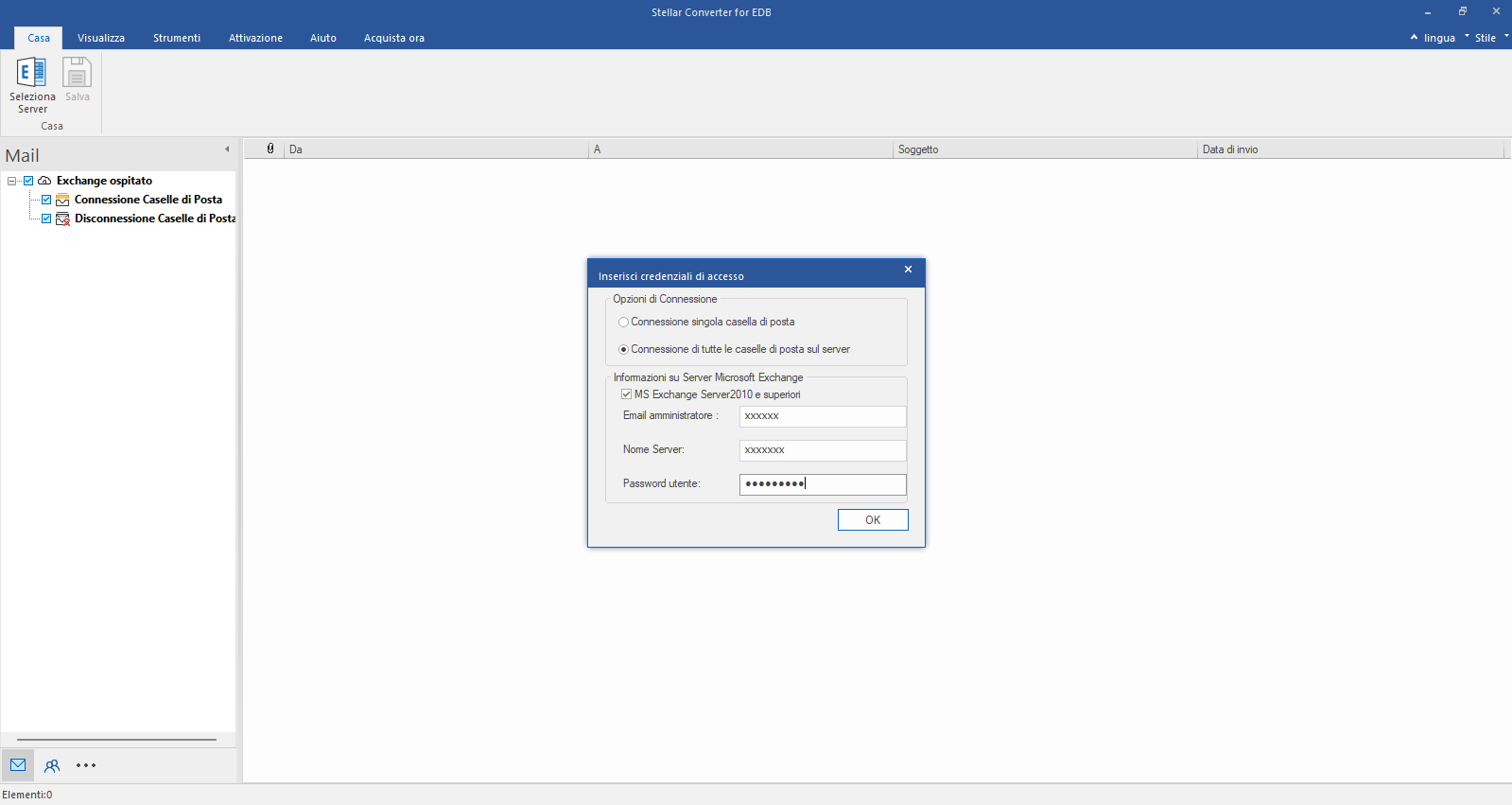
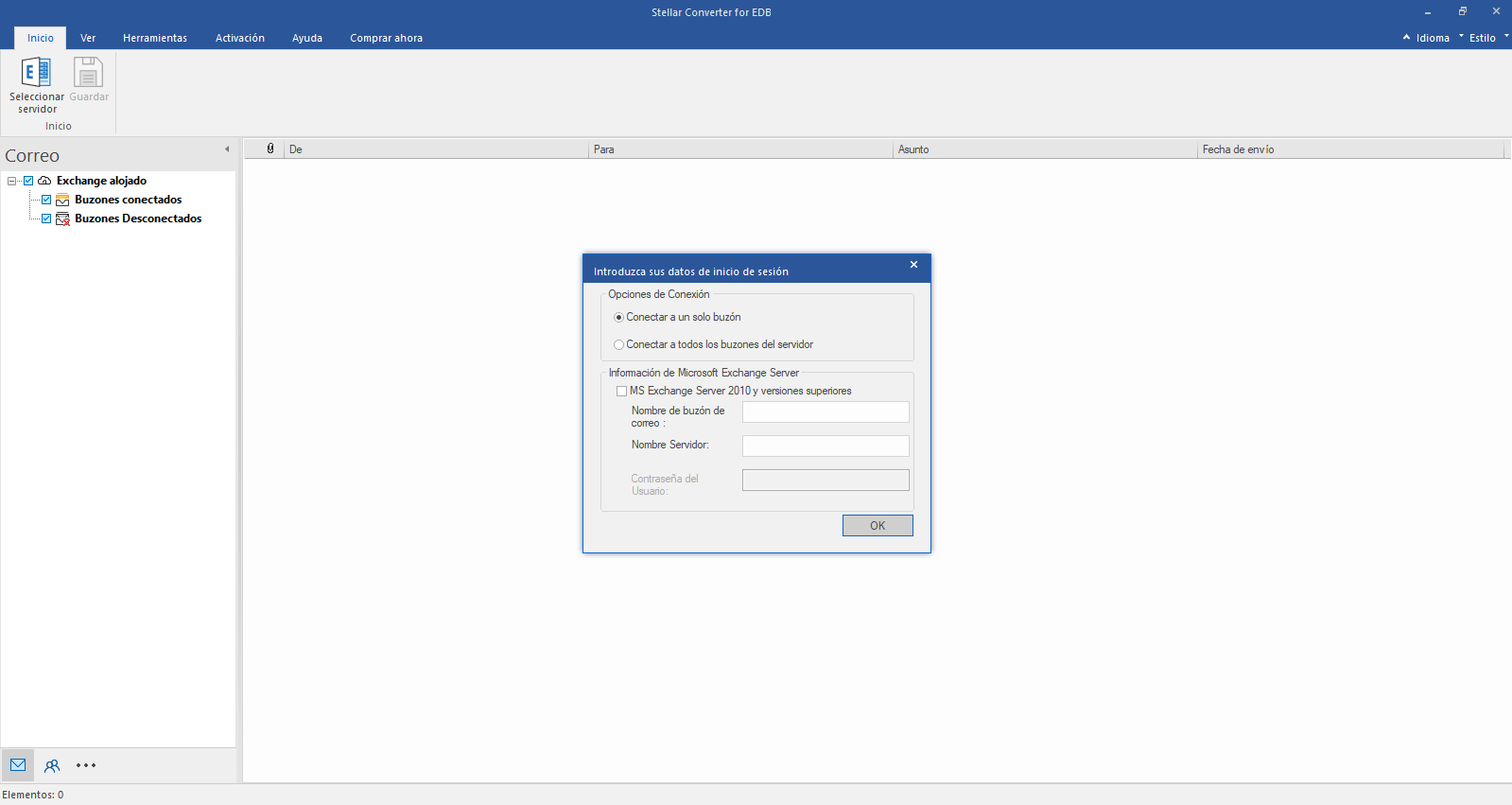
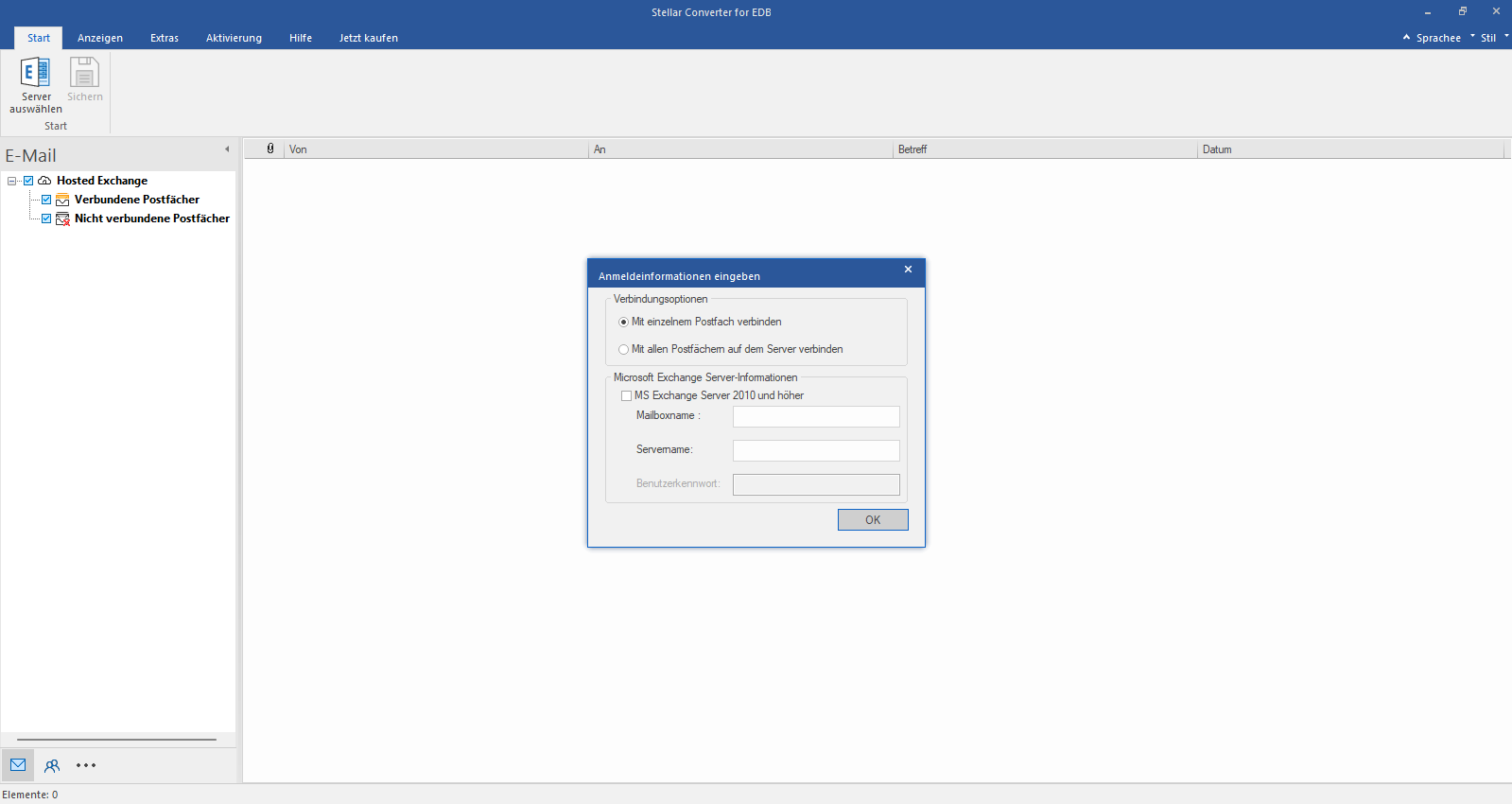
Select Hosted Exchange to export mailboxes from an online EDB file. Select Connect to Single Mailbox or Connect to Single Mailbox from Connection Options
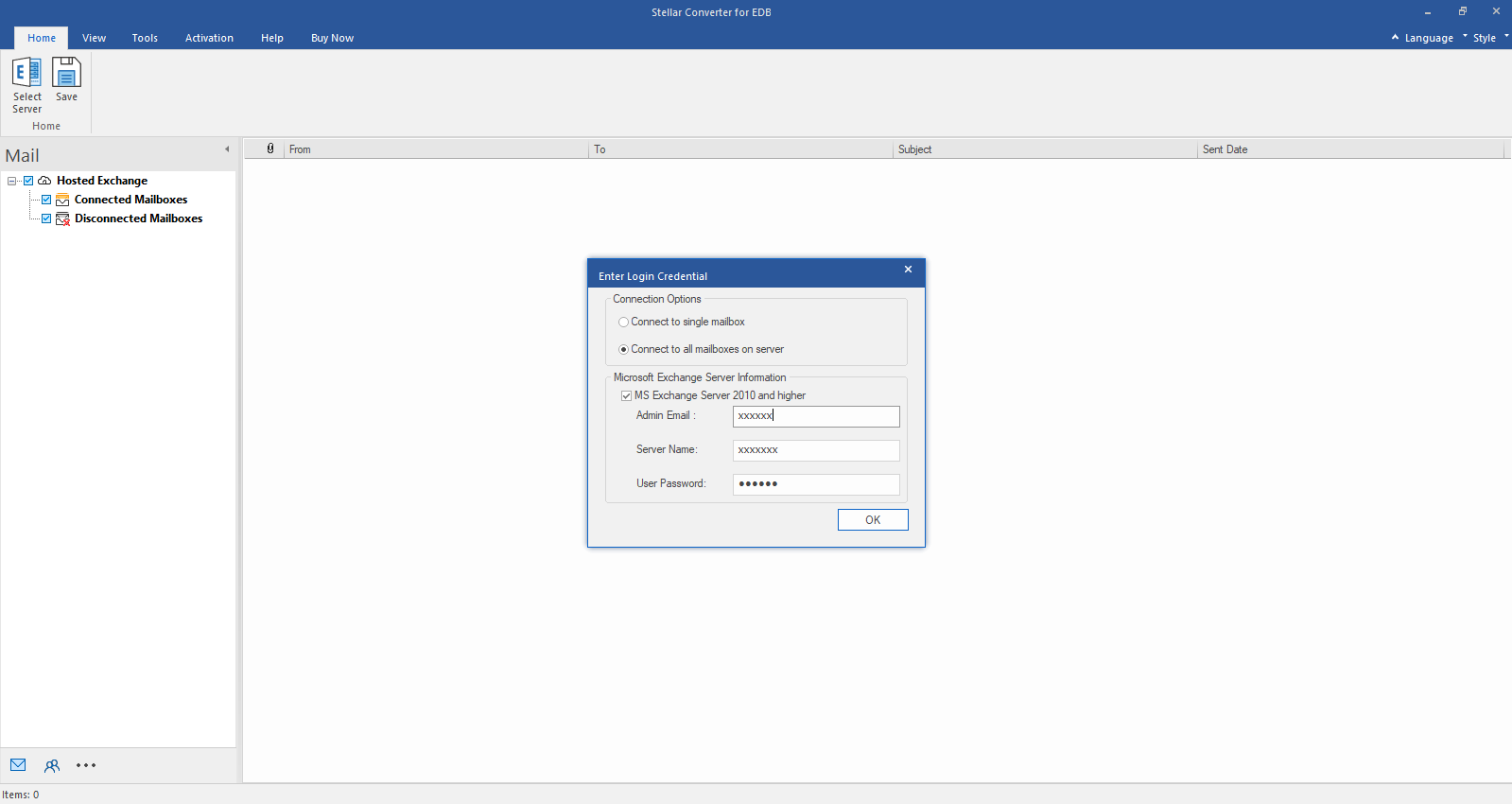
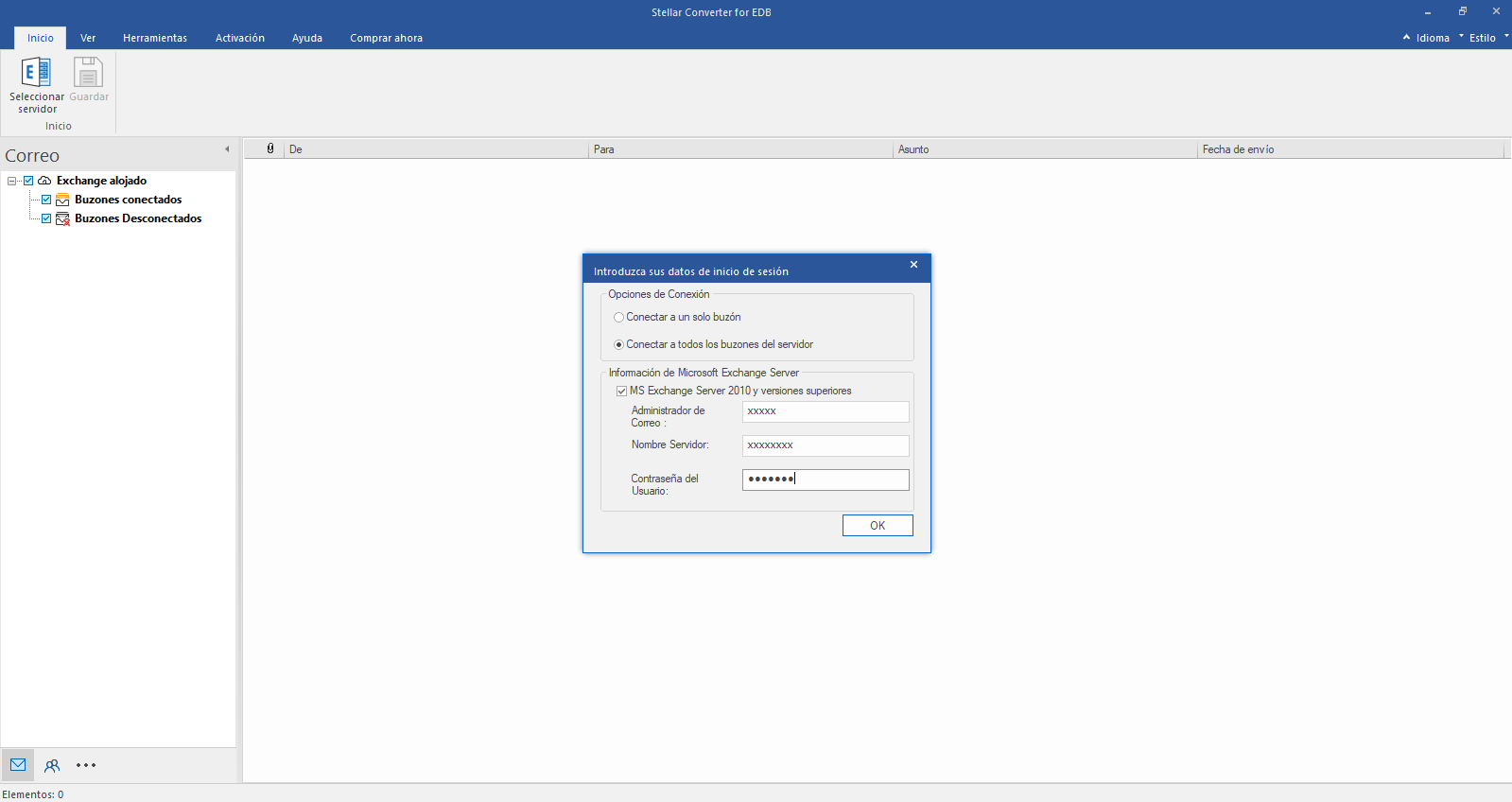
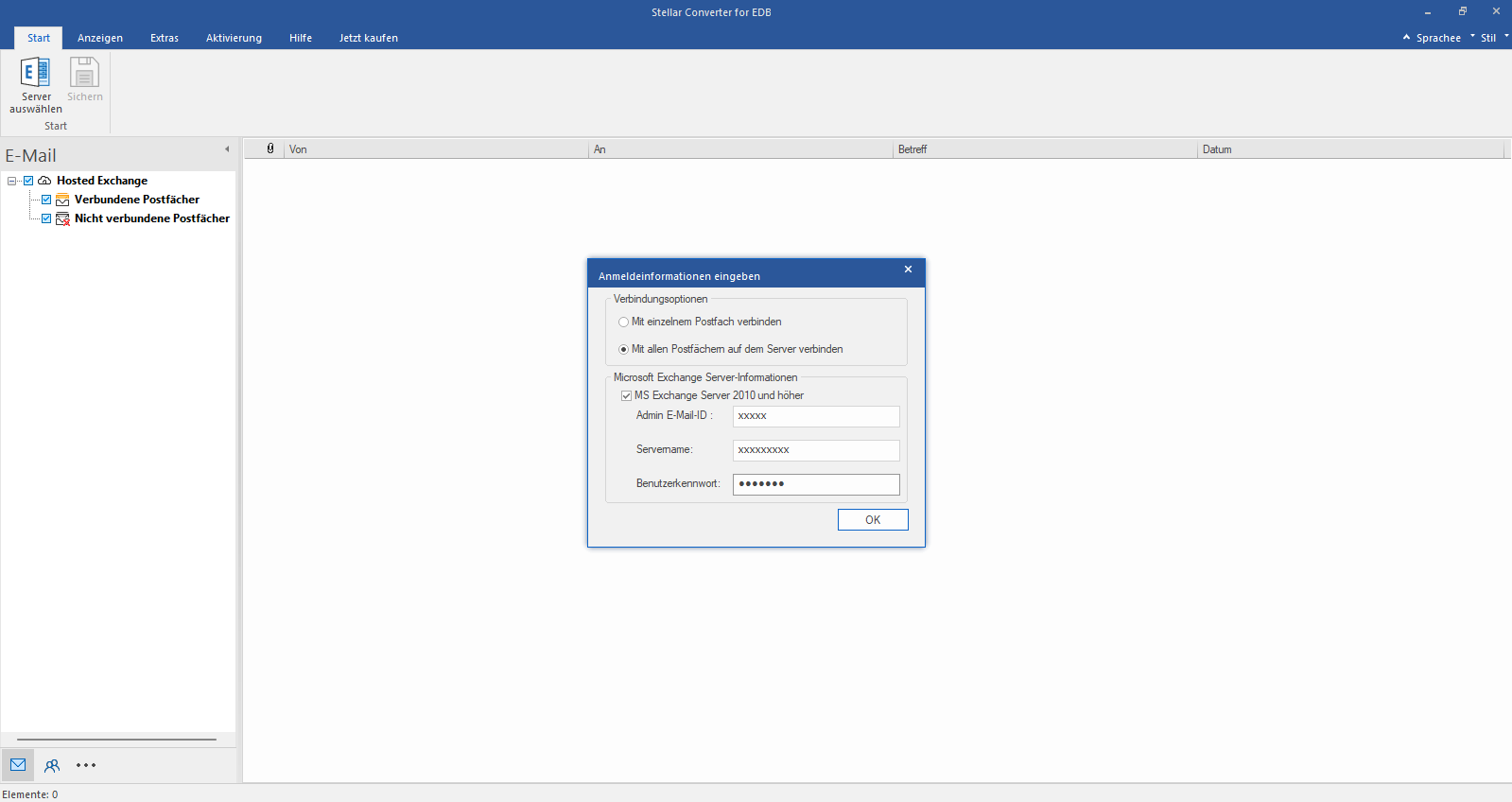
Enter Admin and Server Name (for Exchange 5.5, 2000, 2003, 2007) or tick "Exchange Server 2010 and higher" checkbox to enter Admin Email, Server Name and Password (for MS Exchange 2010, 2013, 2016, and 2019). Click OK.
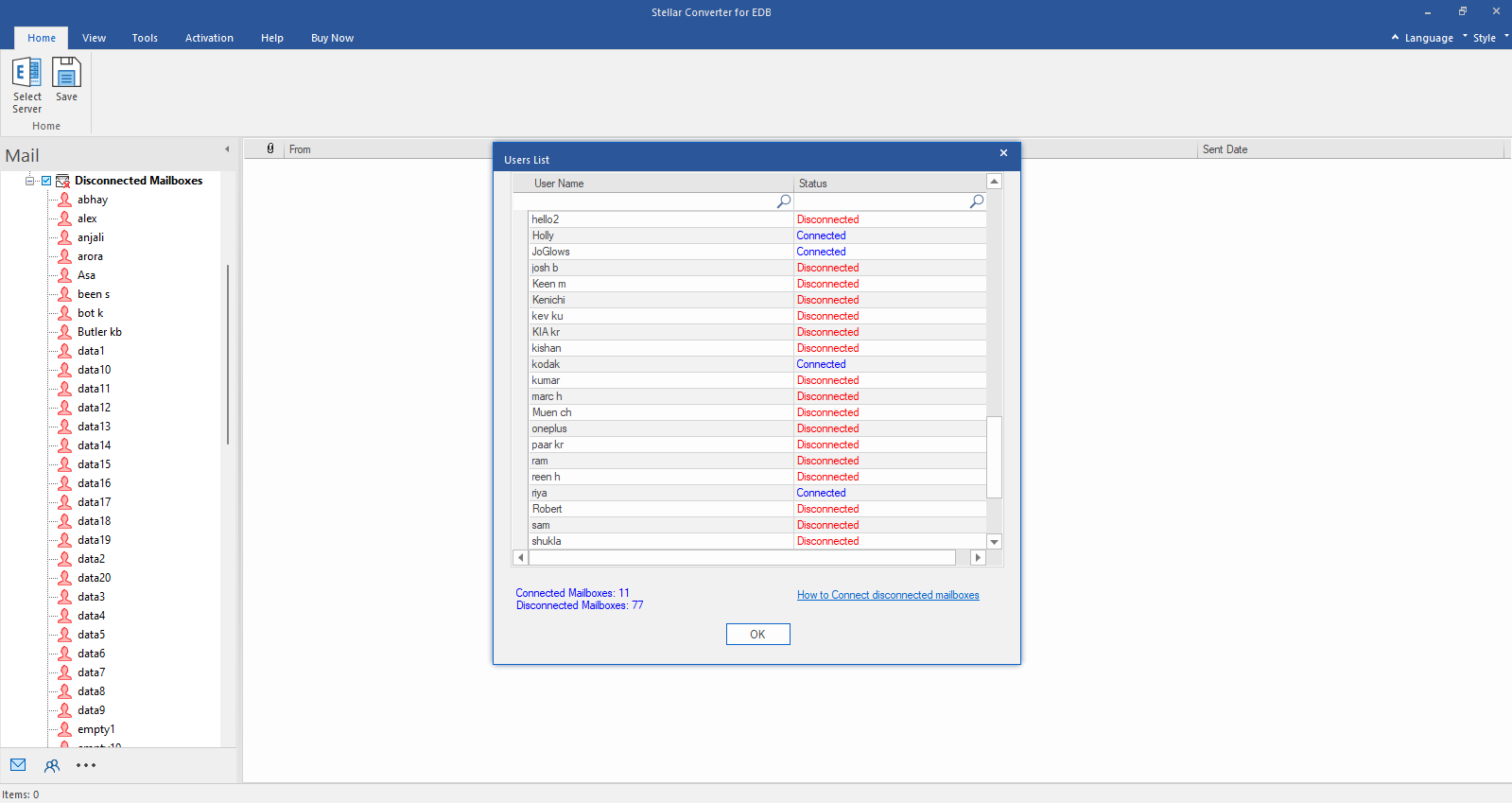
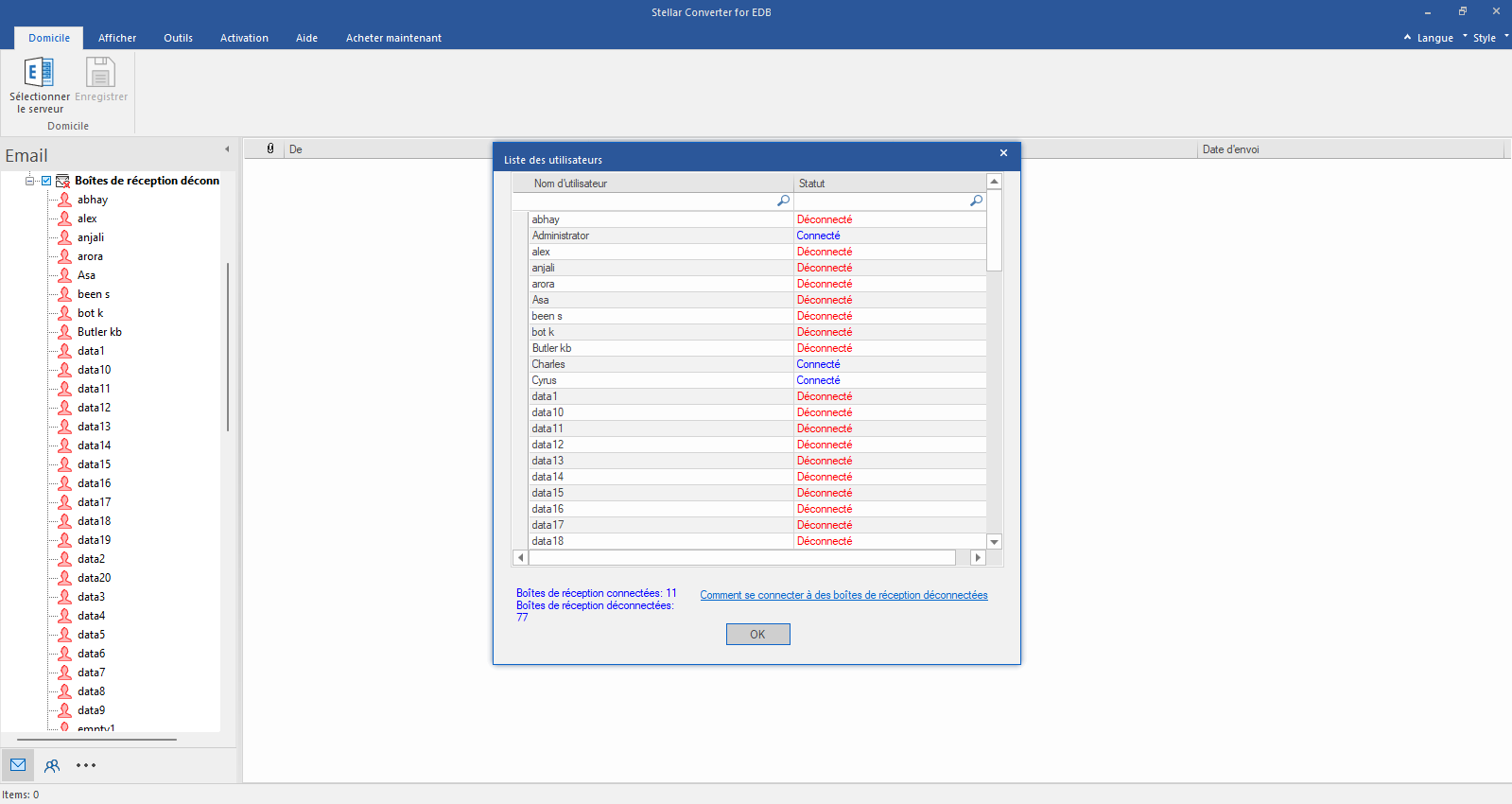
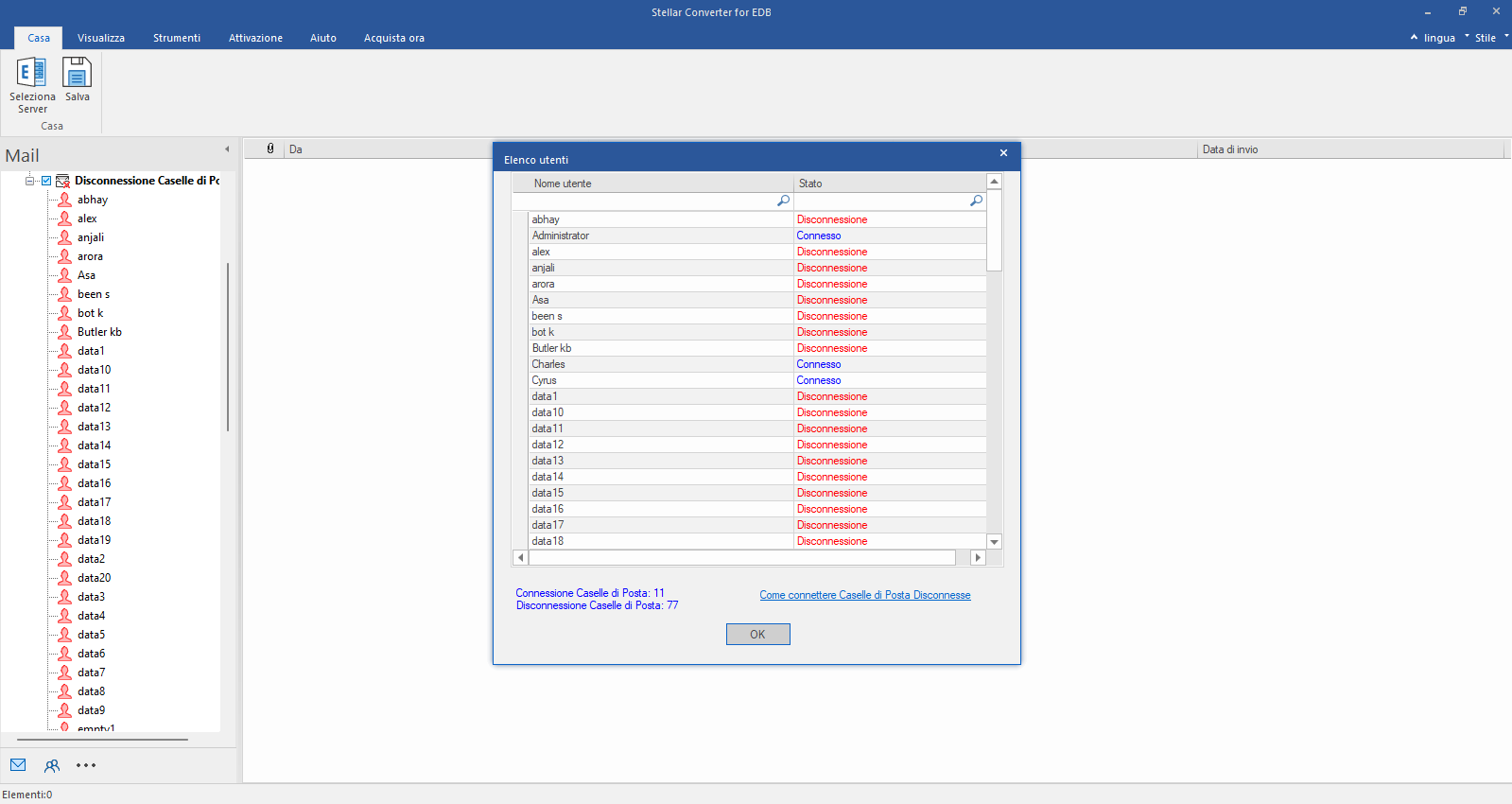
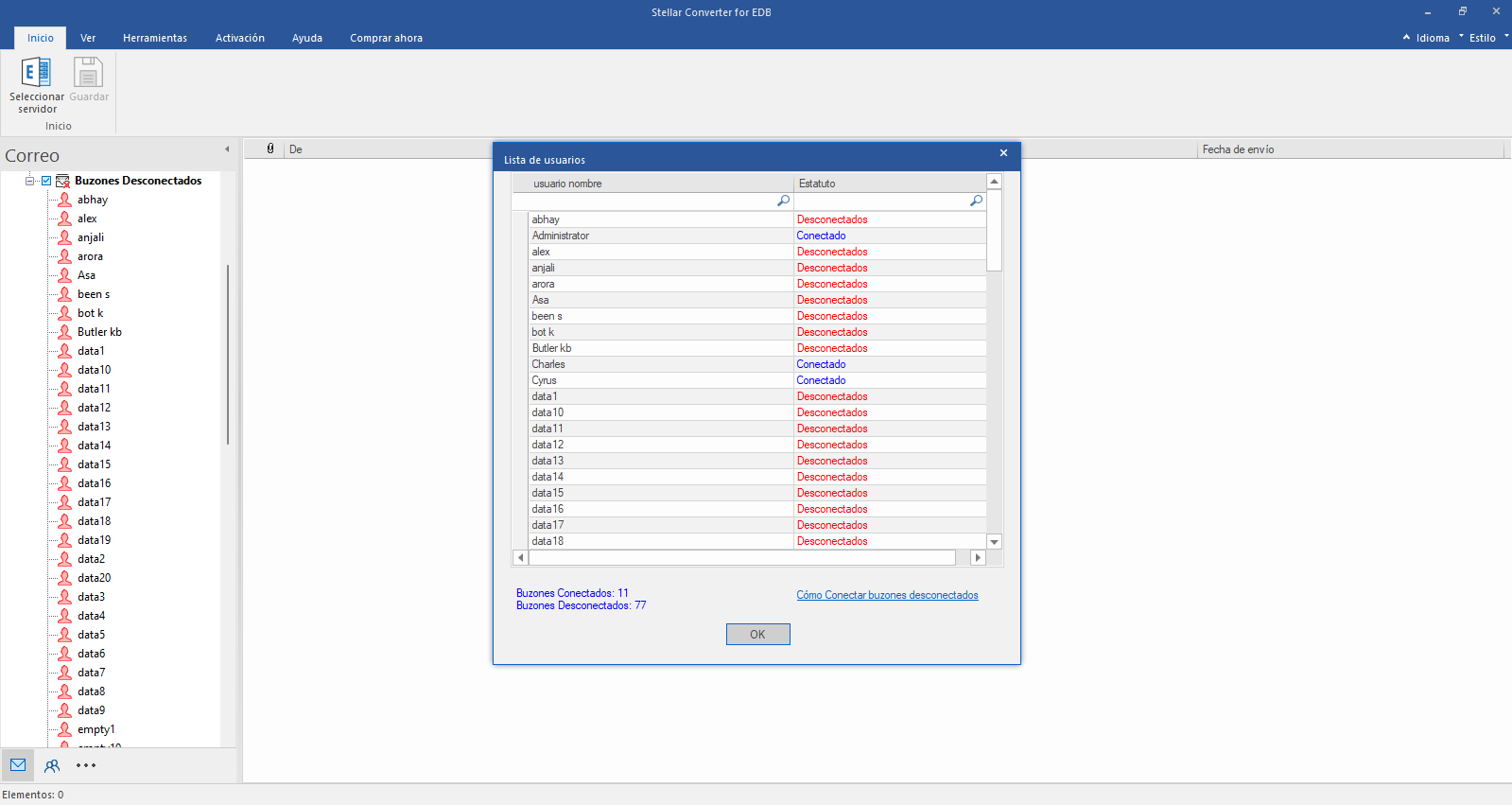
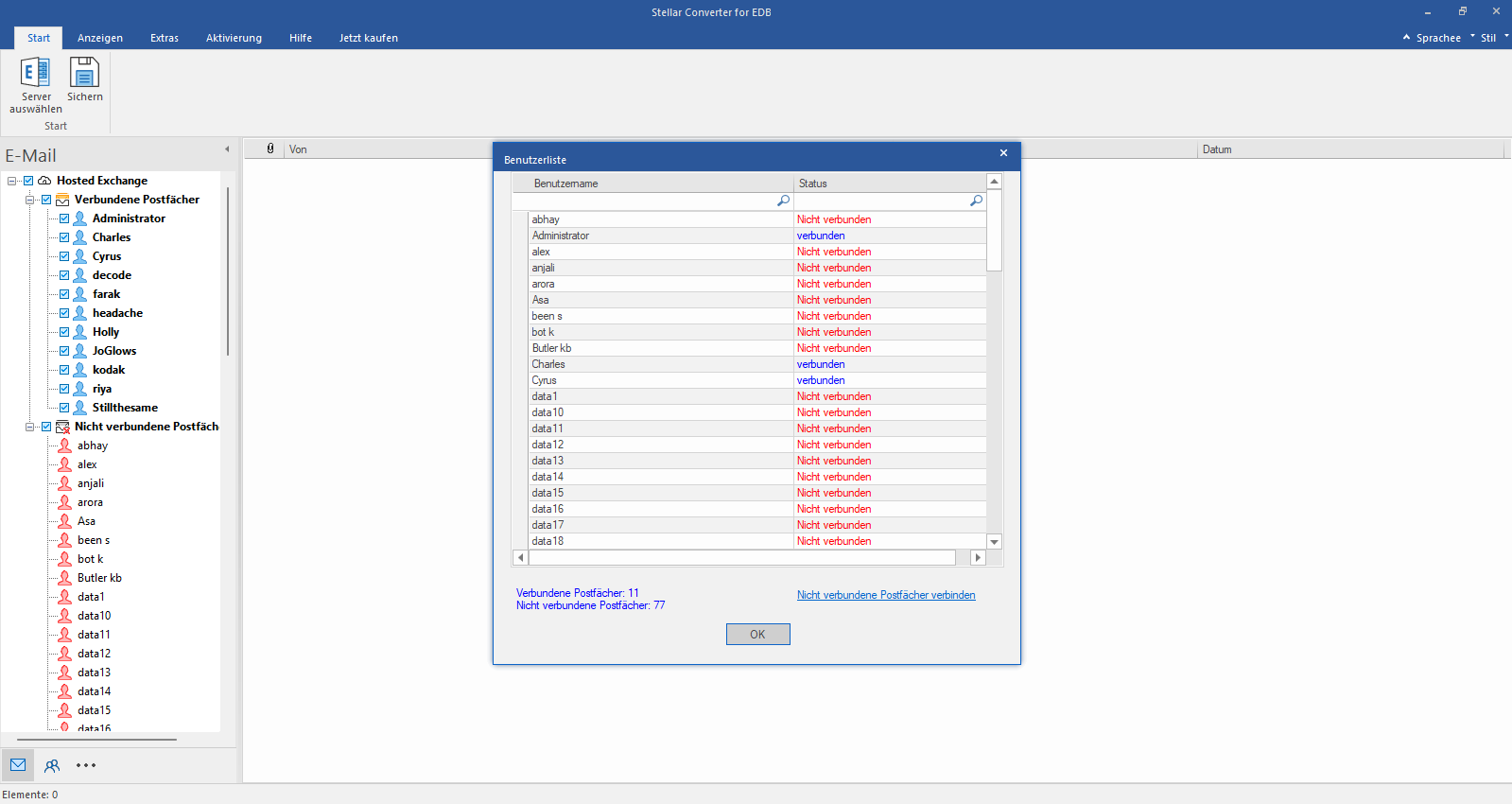
After establishing the connection with Exchange Server, Next window displays list of connected and disconnected mailboxes. Click "OK" to proceed.
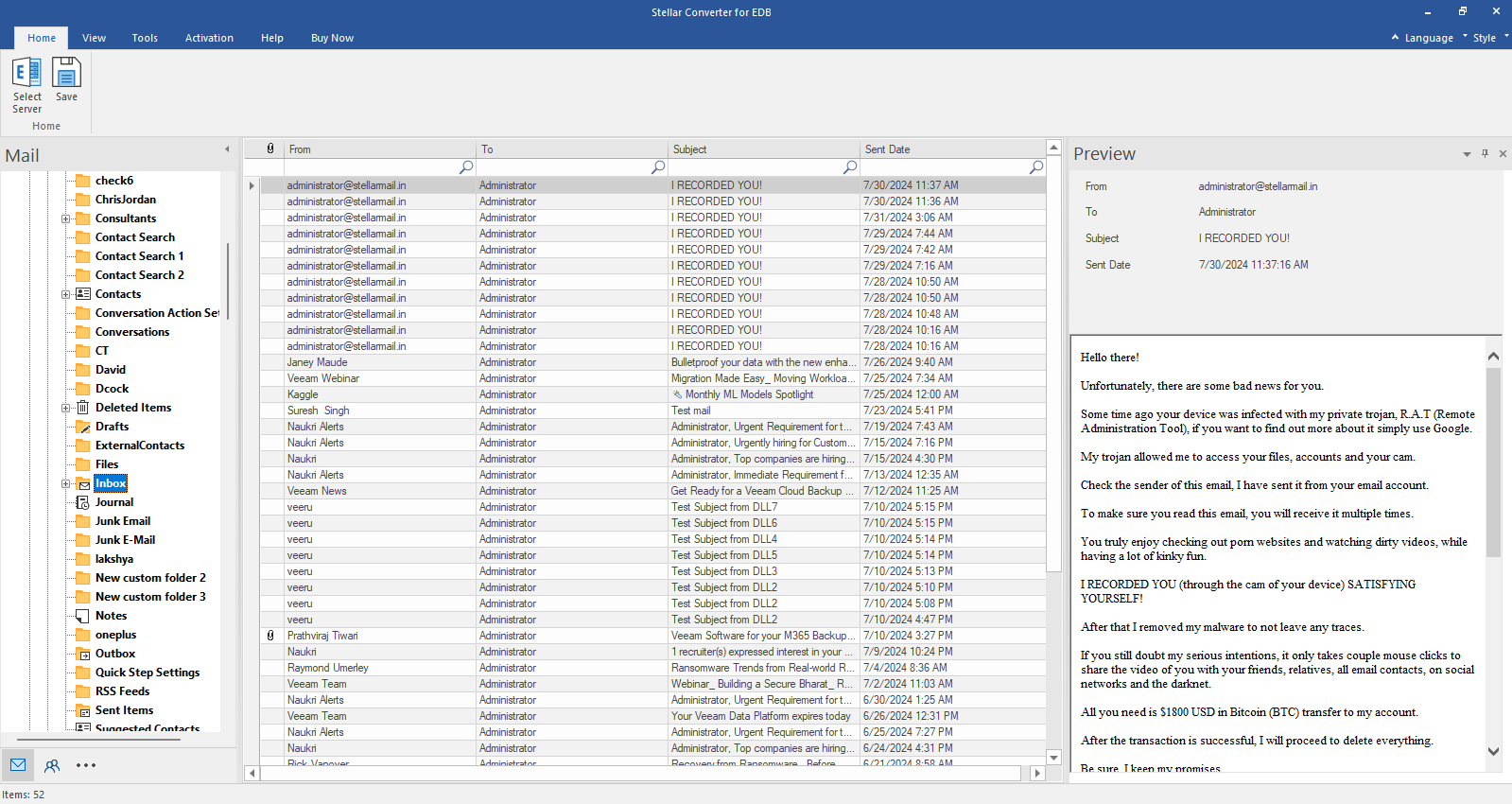
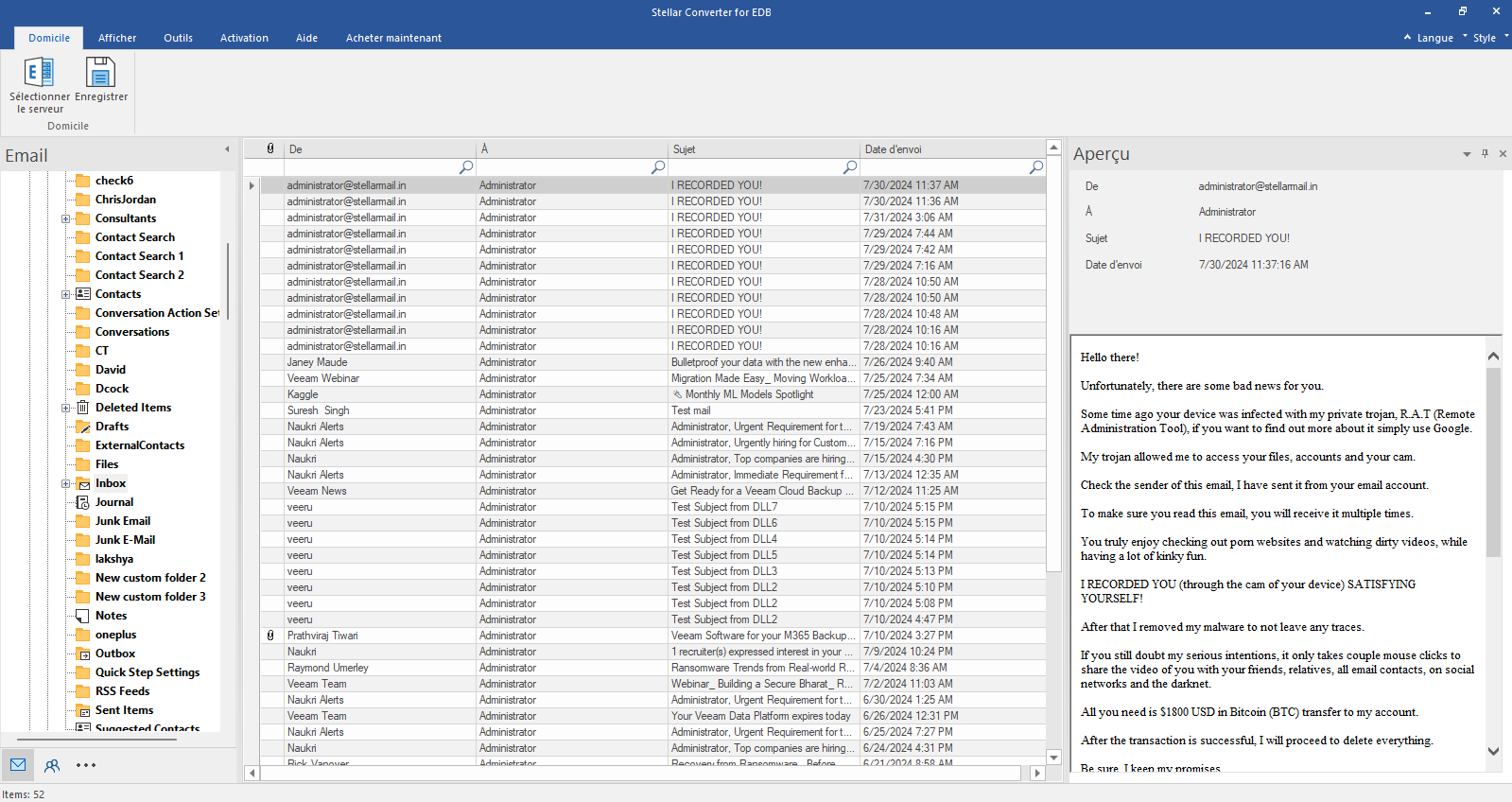
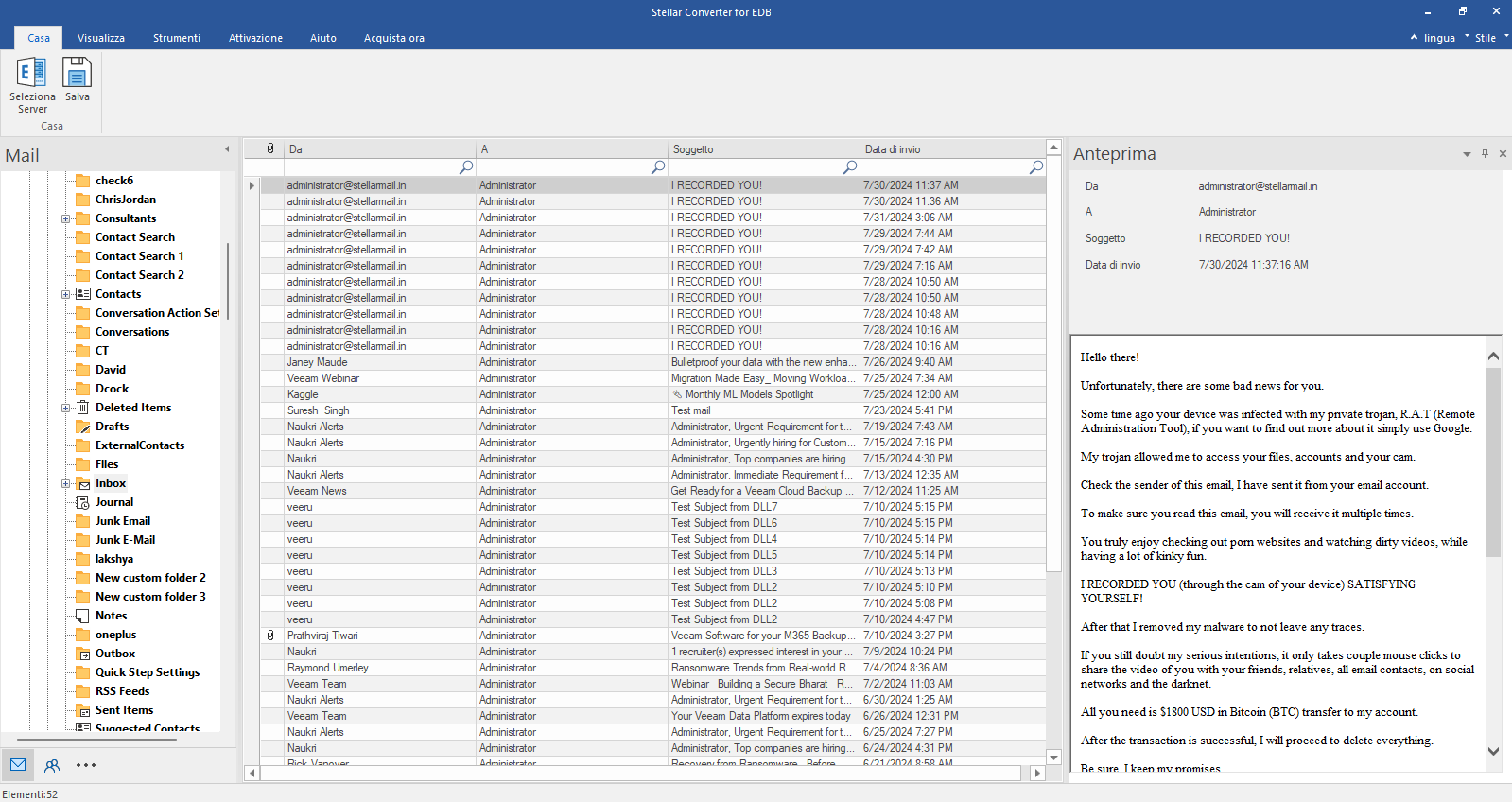
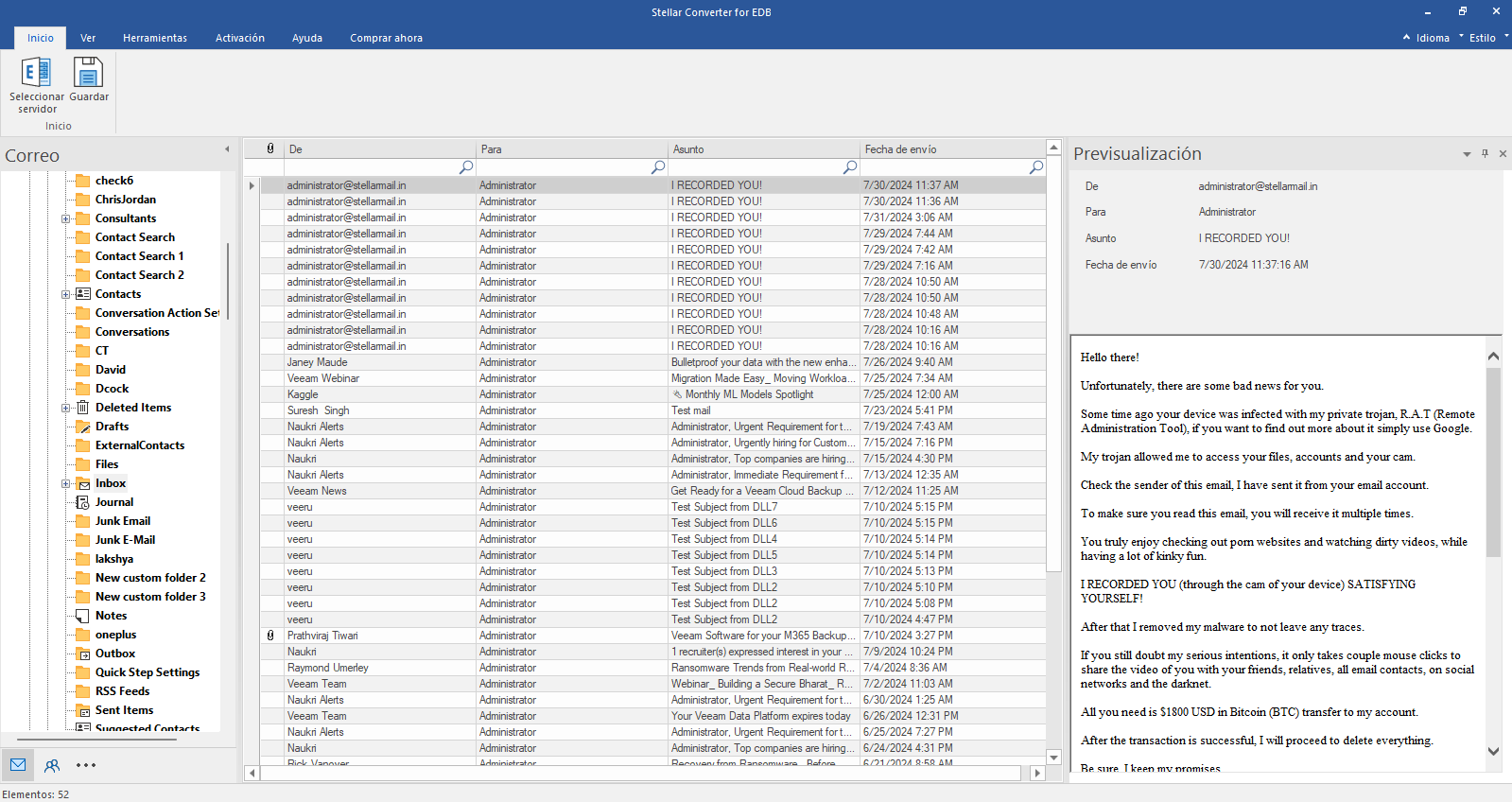
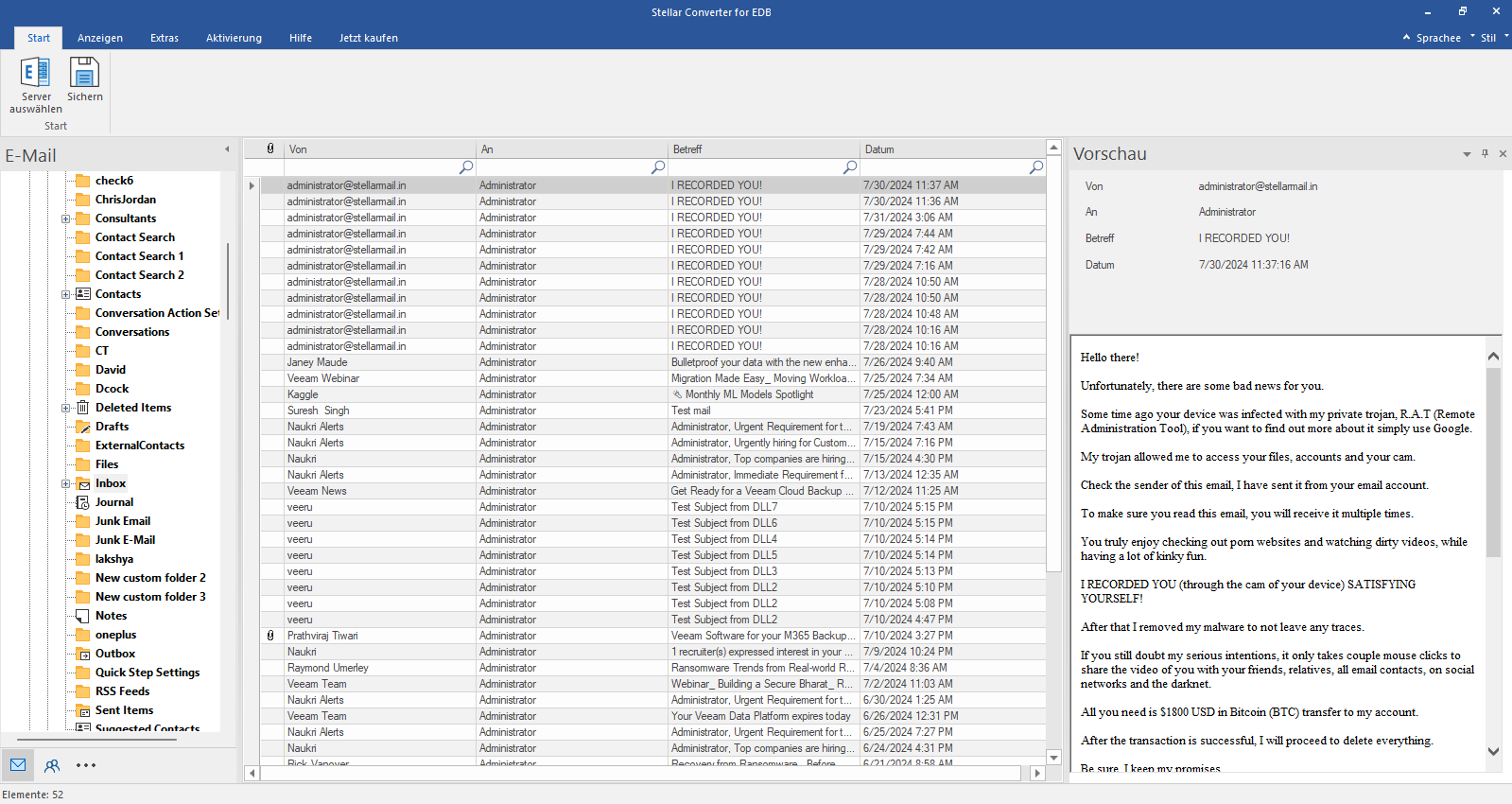
Check the preview of all mailbox items- Emails, Calendars, Contacts etc.
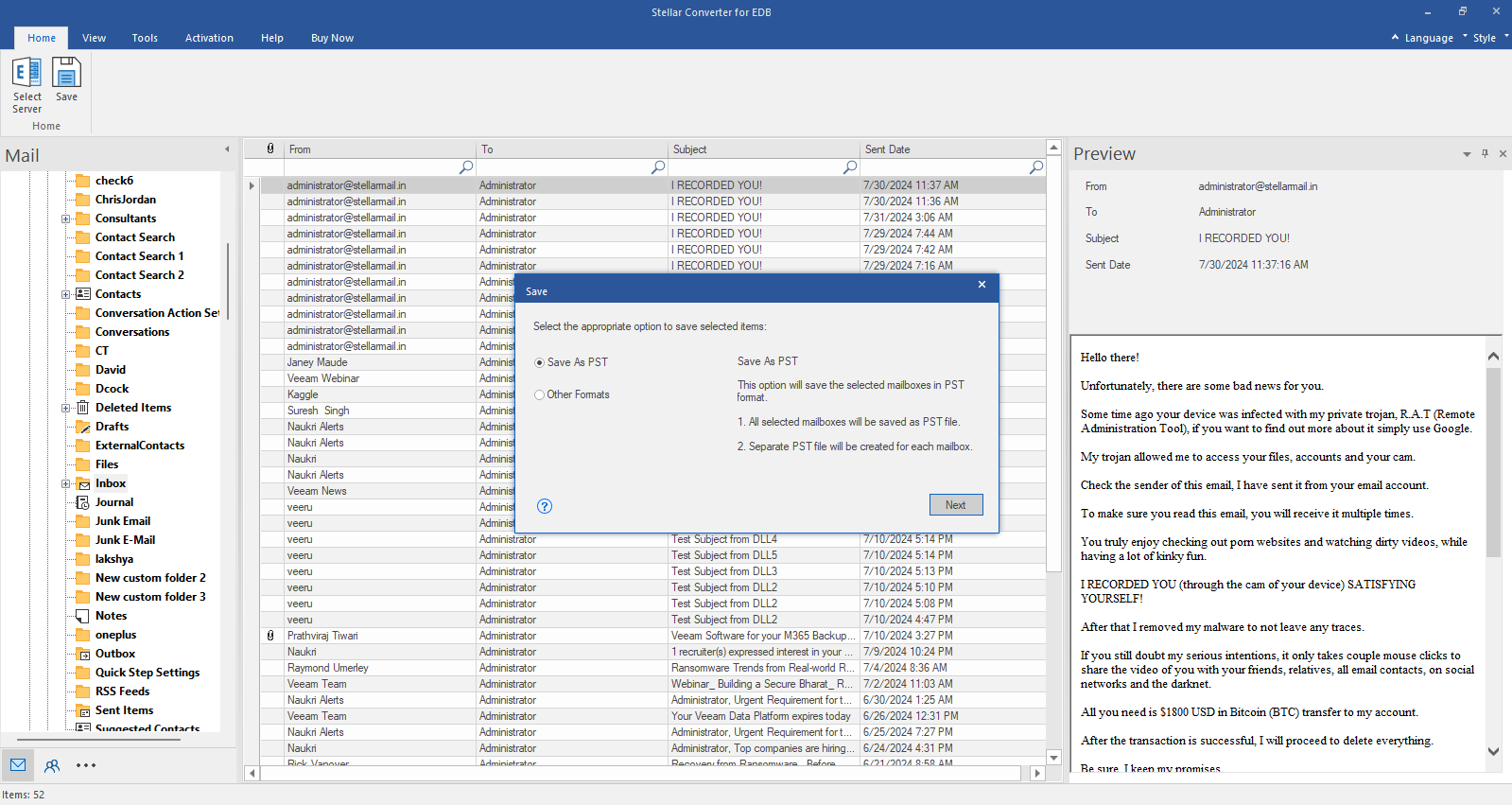
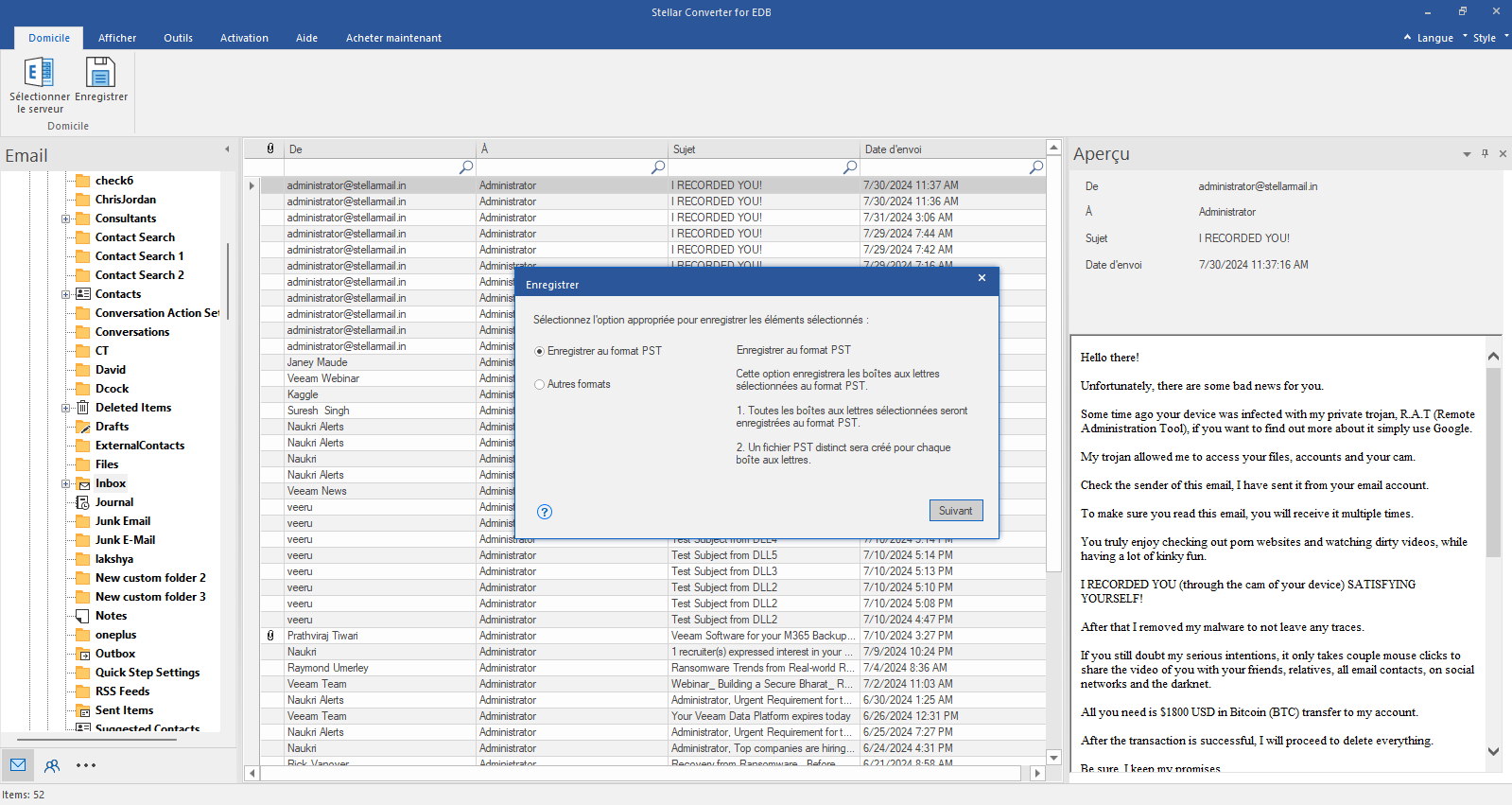
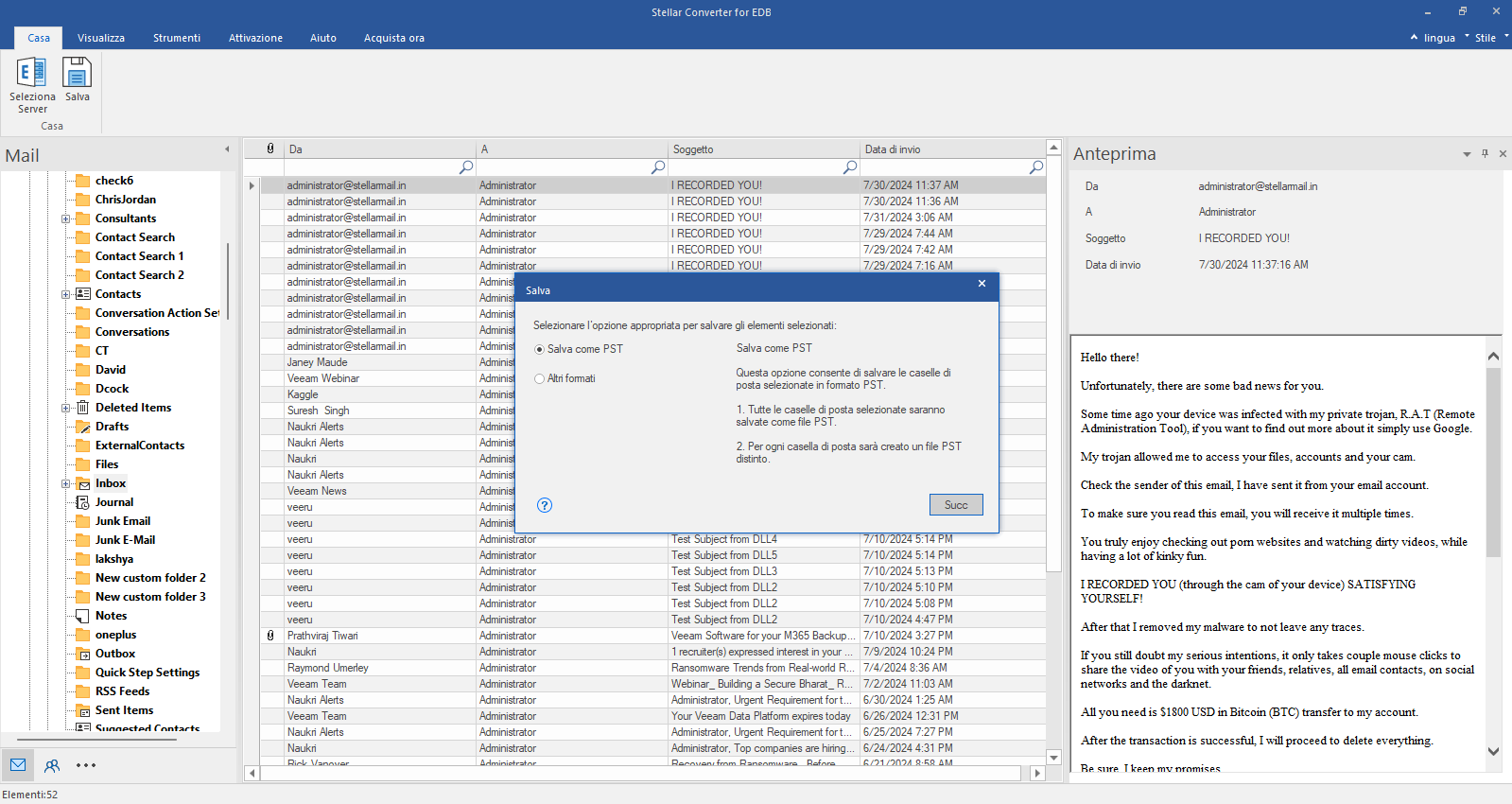
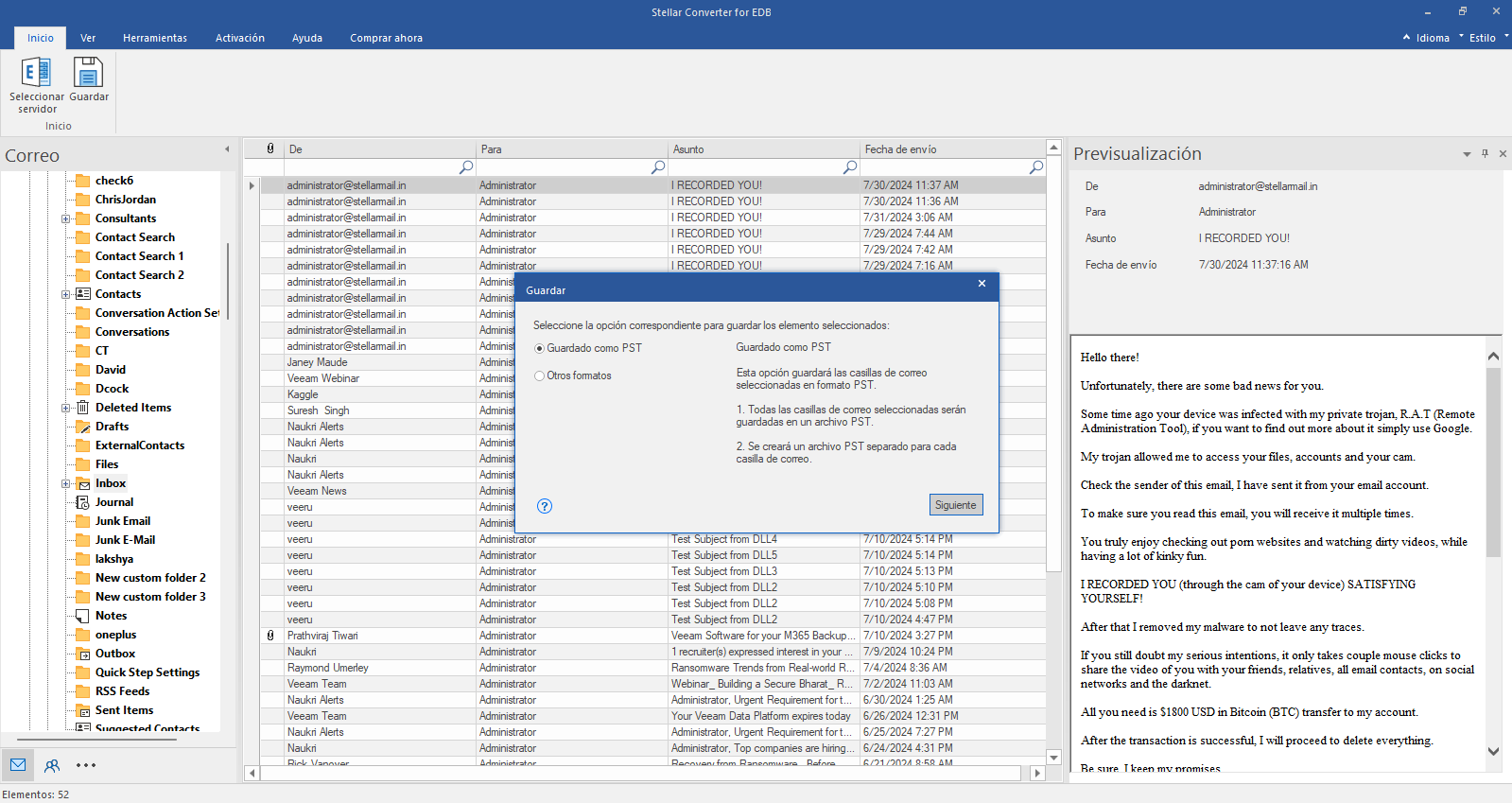
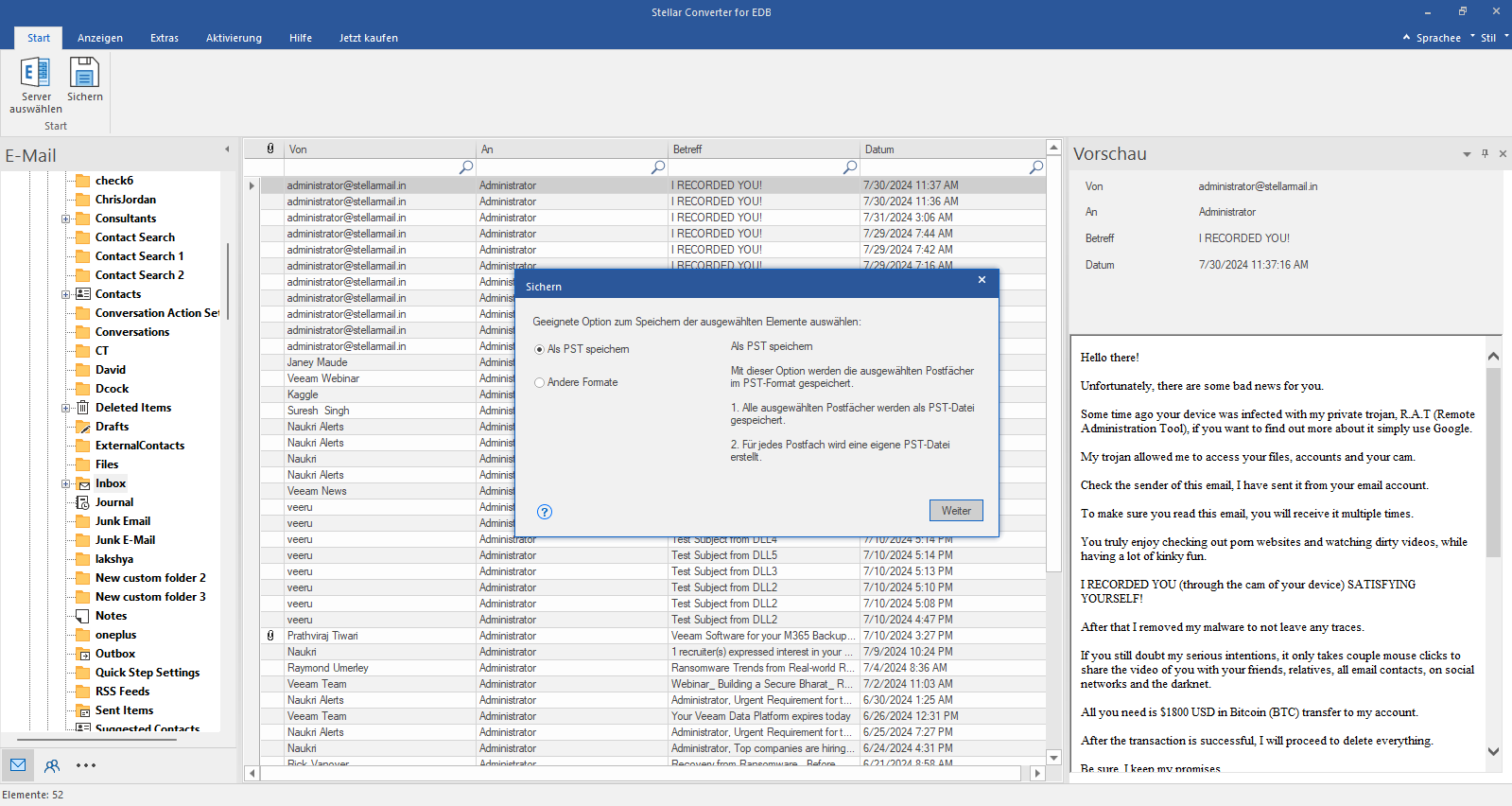
Click Save from Home Ribbon and Select Save as PST option. Click "Next" to proceed.
Welcome! If you’re here, you’ve likely registered through the Stellar Migrator for Exchange website and received an email containing your login credentials. This email includes a download link for the Stellar Migrator for Exchange software (EXE) and access details for the Licensing Portal (stellarlicenseserver.com). To get started, click on the download link provided in the email or access it directly from the Licensing Portal.
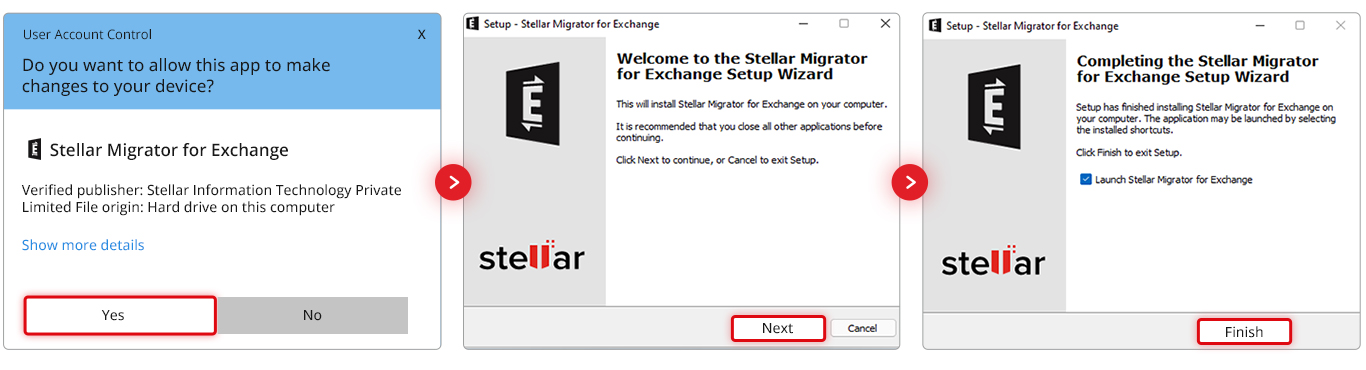
After downloading the Stellar Migrator for Exchange setup file, run the installer and follow the on-screen instructions to complete the installation. Once installed, launch the software — no additional configuration is required. You’re now ready to start your test migration using the 2 free mailbox credits included. The next step is to create your first migration job.
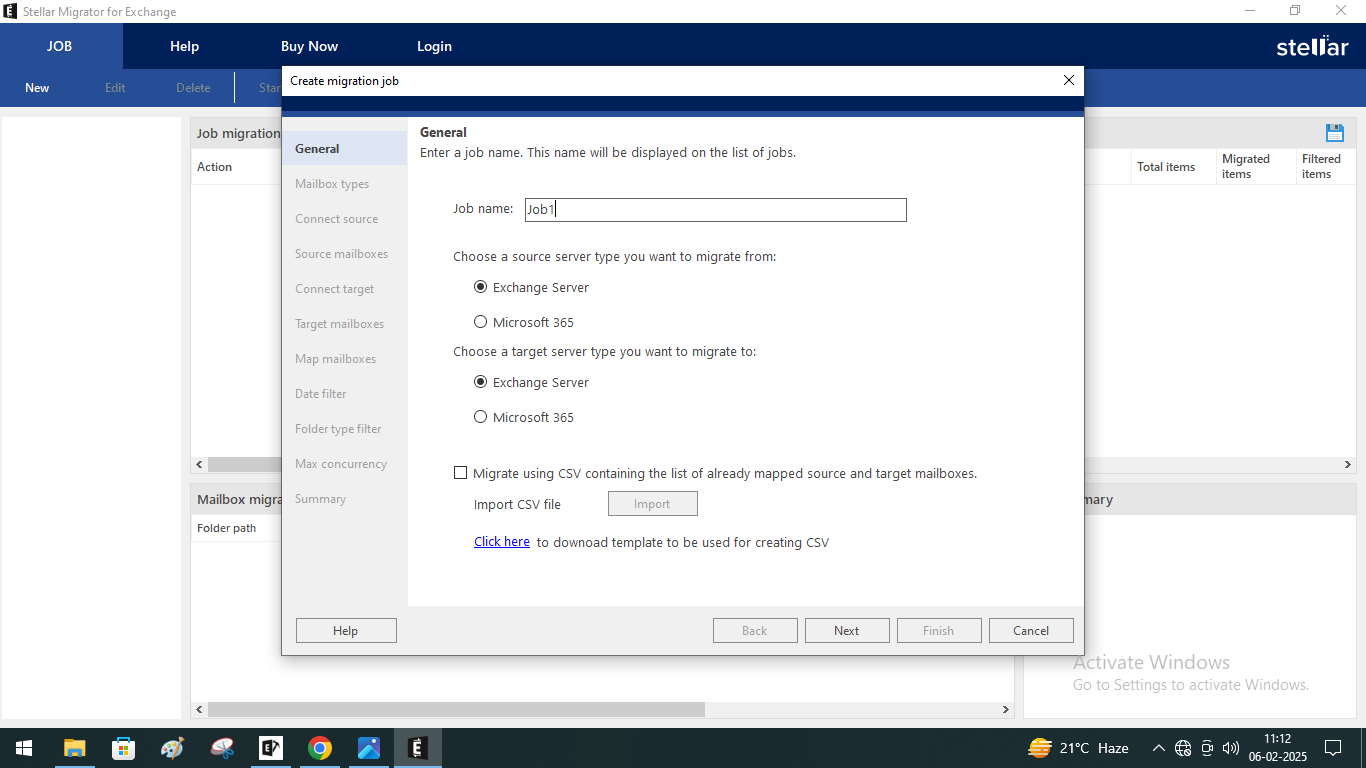
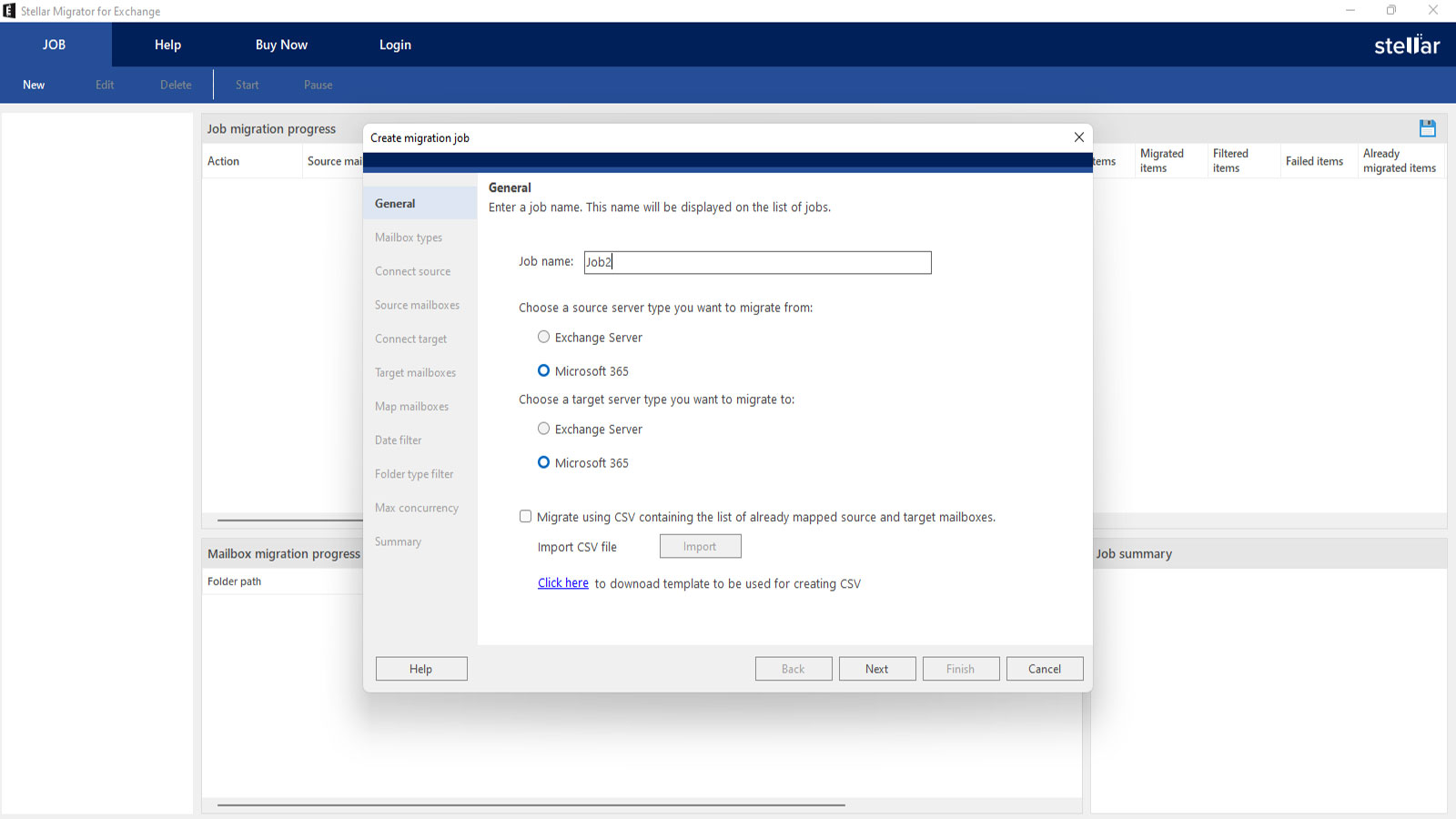
A migration job involves migrating mailboxes, which include emails, calendars, contacts, and other data, from one Exchange server or platform to another. Configuring General Settings is the first step to create a migration job. In this step, you need to provide a name for your migration job and choose the source and target server types. The source server is where you are migrating data from, and the target server is where the data will go.
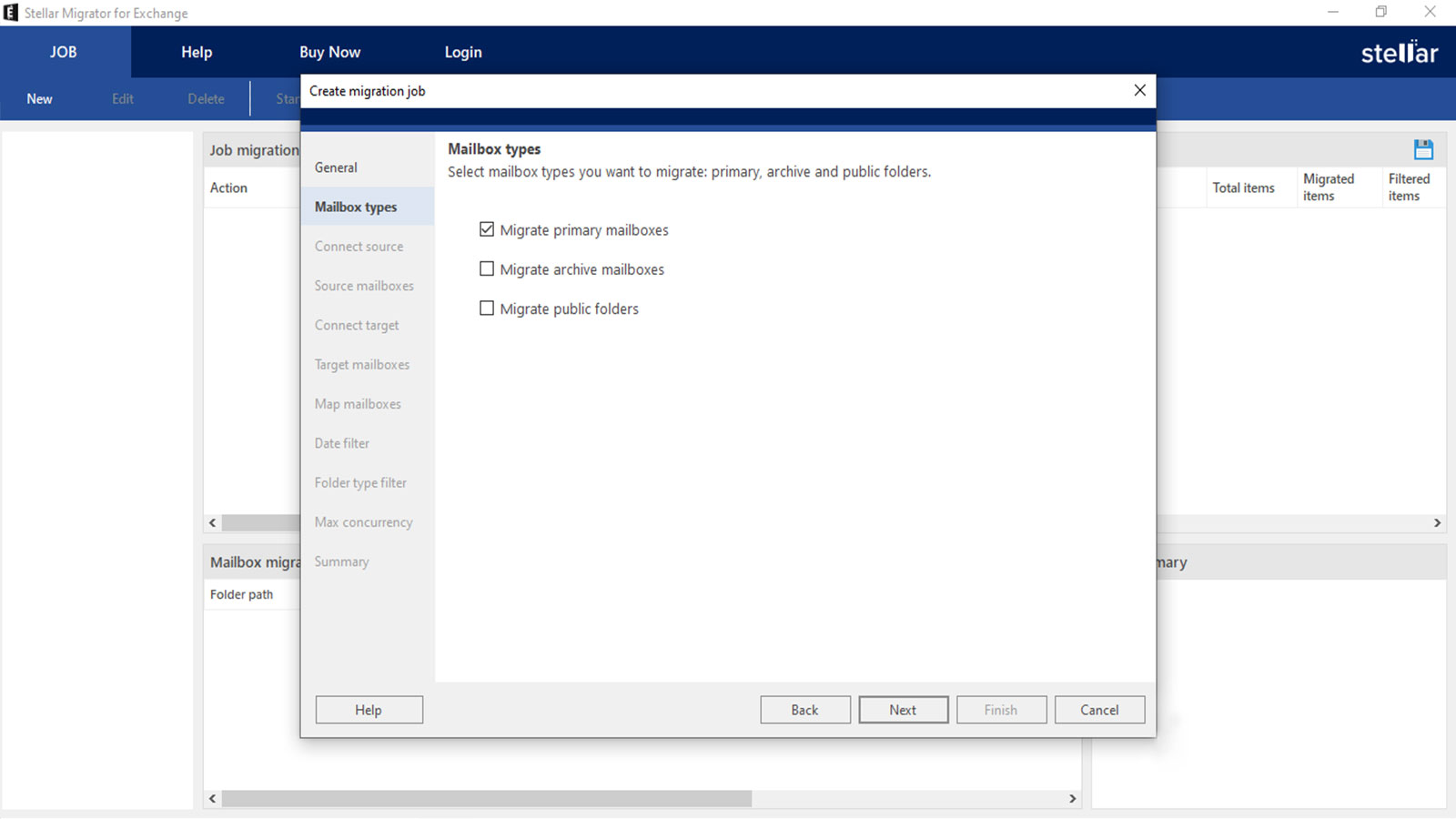
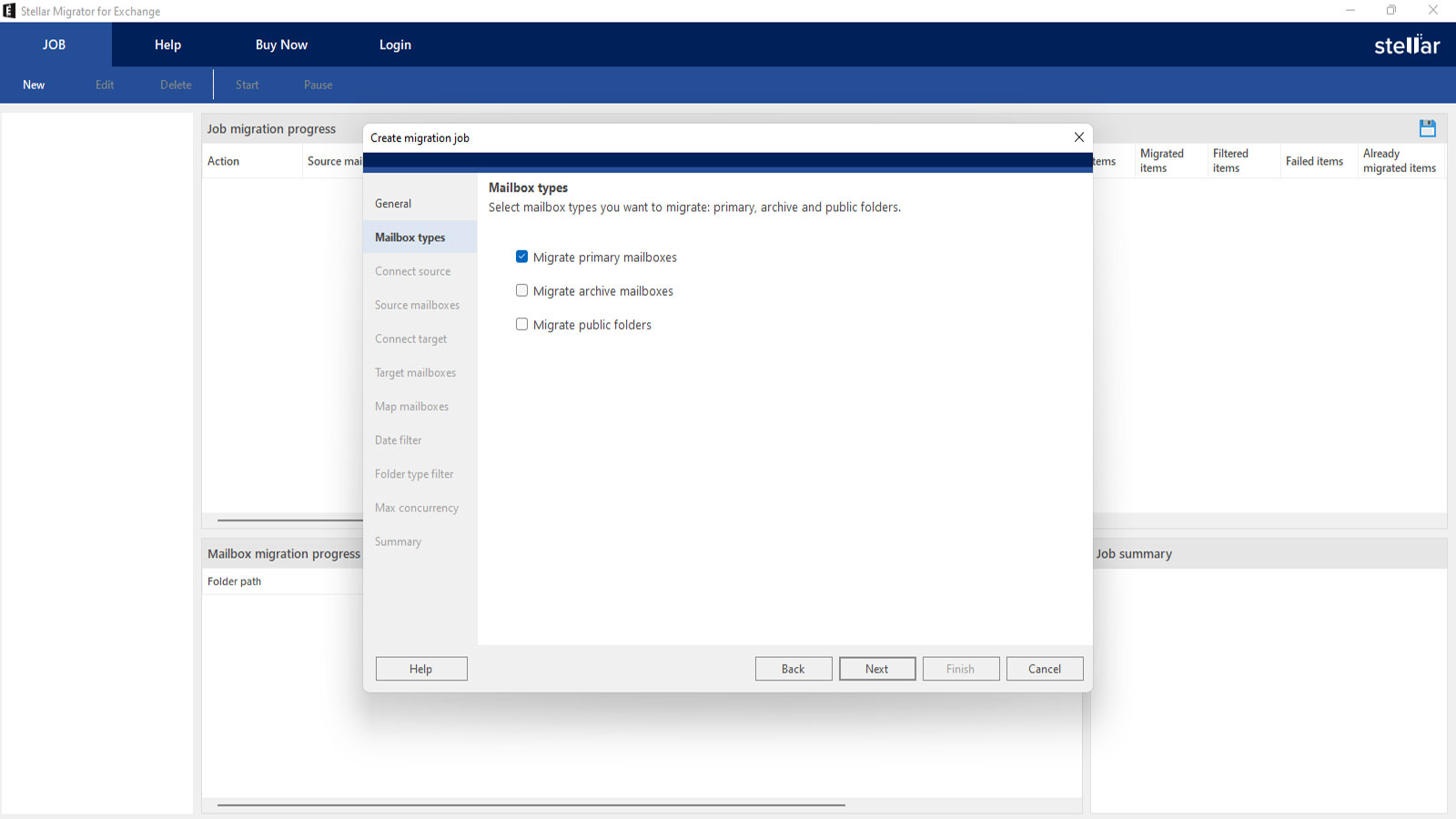
In the Mailbox Types step you need to select which mailbox type you want to migrate. You will have the option to migrate primary mailboxes, archive mailboxes, and public folders separately or together
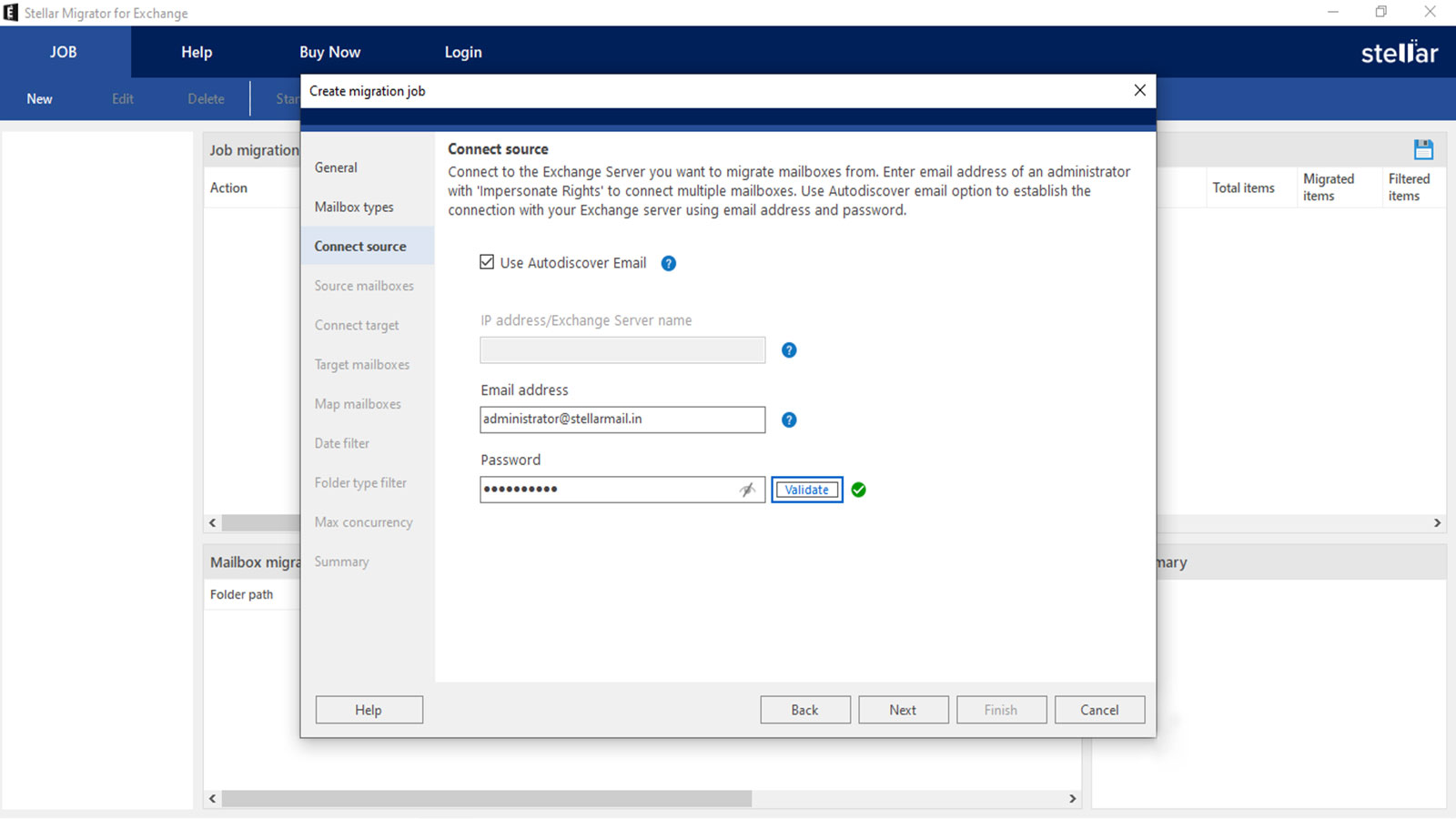
You need to connect the software to the server you want to migrate the mailboxes from. You can use Autodiscover and enter only the Email address and Password. The software will automatically connect to the source server. Or, you can manually enter the details of the server, like IP address/ Exchange Server name, Email address, and Password.
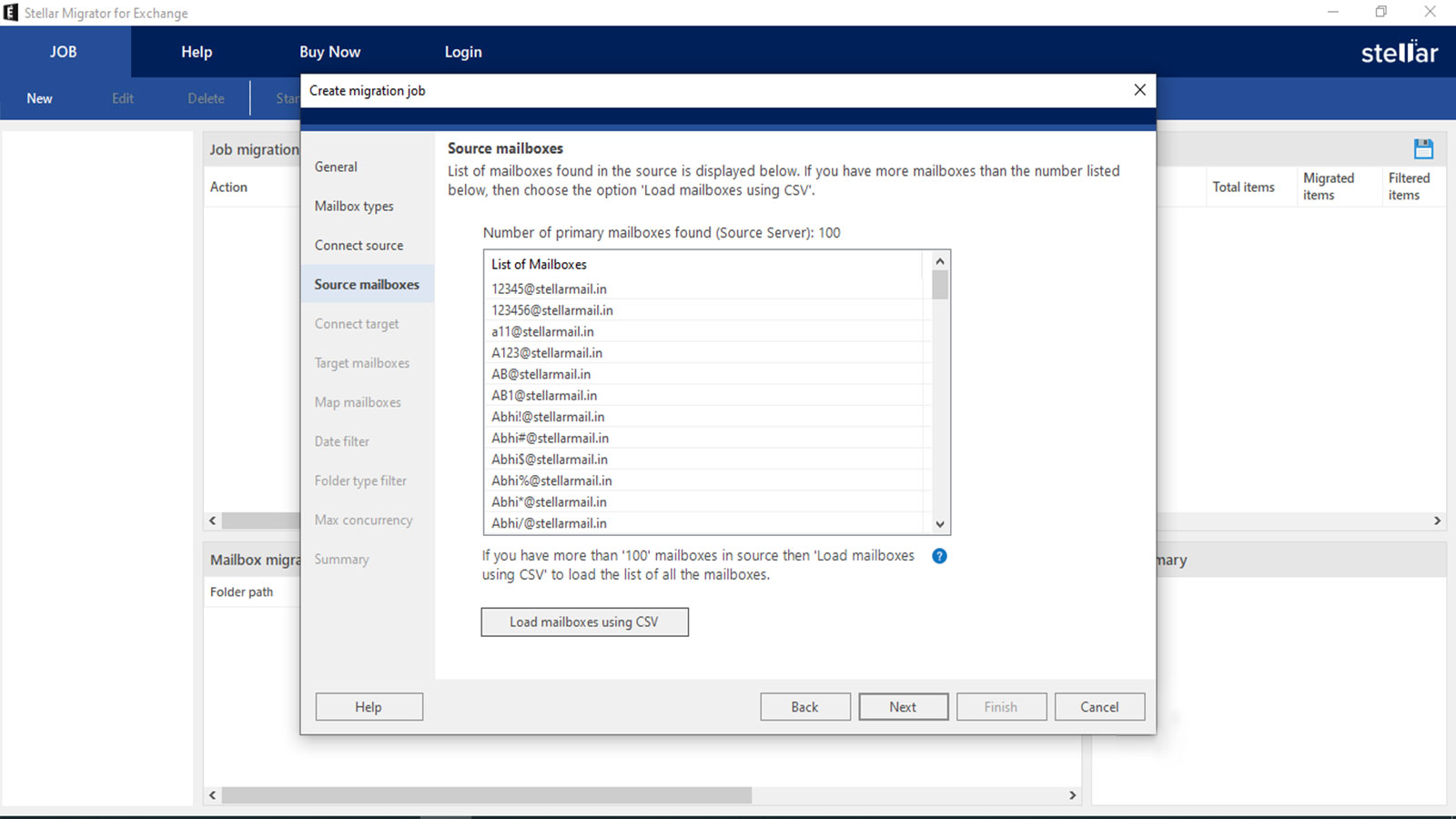
In the next step, you will see a list of mailboxes obtained from the source server. If there are more than 100 mailboxes, choose the option "Load Mailboxes Using CSV" and upload a CSV file with all the mailboxes.
In the Connect Target tab you need to connect the destination Exchange server. To do this you need have admin credentials with impersonate rights.
You will then see the mailboxes in the destination server. Again, if you have more than 100 mailboxes you can select the Load Mailboxes using CSV to view all the mailboxes.
If you did not enable the auto mapping feature you can manually map the mailboxes on the source server to the destination server.
Step 7: In the next step you can apply a date filter on the mailbox items and migrate the items from a specific date range.
Then, you need to select the folder types you want to migrate. Using this you can exclude unnecessary or irrelevant folders and make sure that only the required data is migrated.
In the next step, you need to select, how many mailboxes you want to migrate simultaneously. You can select up to 10 mailboxes.
In the next step, see the job summary and confirm all the details before starting with the migration. If you want to change anything, select that section and make the changes.
Click Finish to create the job and then click Start in the JOB ribbon to start migration process. You can pause the migration any time with the Pause button in the JOB ribbon.
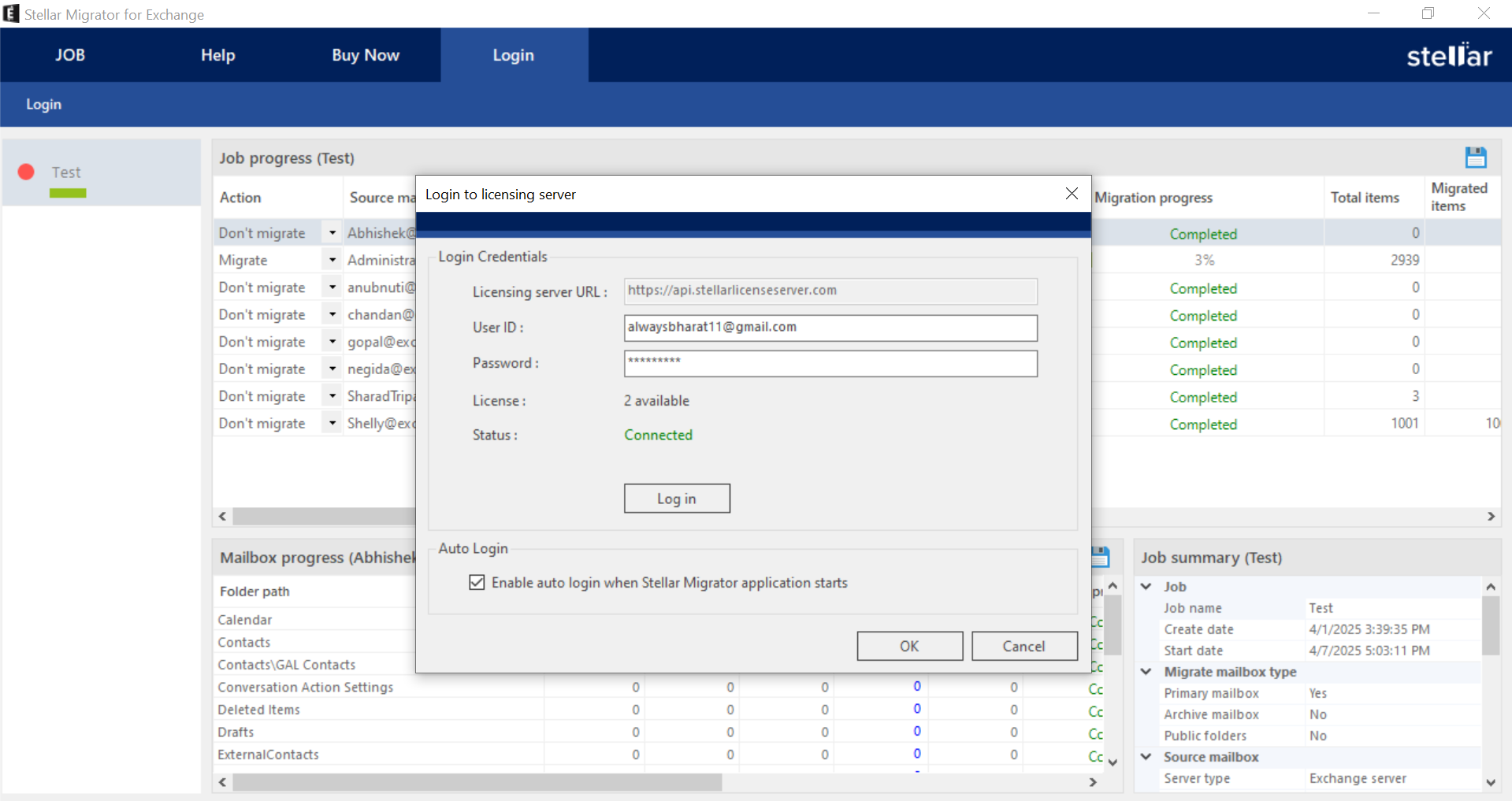
Login to Licensing Server- "Login to Licensing Server" window will appear. Enter the required credentials: the Licensing Server URL (which will be selected by default), your User ID and the password. The license count and connection status will be displayed accordingly.
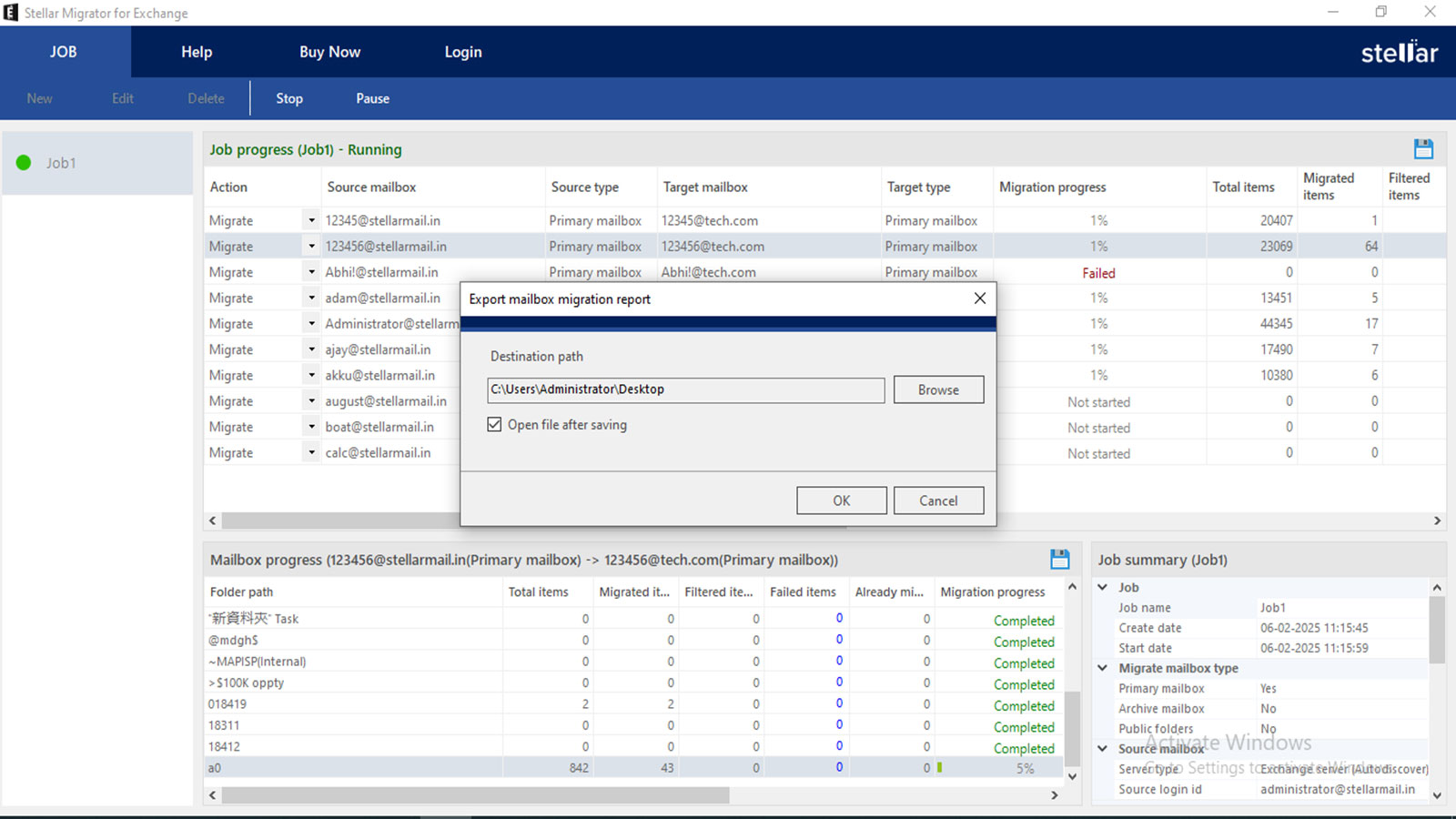
If you need, you can export the Job Progress and Mailbox Progress reports from a dashboard. These reports are used for tracking the migration, because they provide an overview of the job.
After completing the migration, the action field in the job progress will change from Migrate to Don't Migrate. If the job fails to migrate, it will remain in the Migrate state, allowing you to attempt the migration again without making repeated changes.
Welcome! If you’re here, you’ve likely registered through the Stellar Migrator for Exchange website and received an email containing your login credentials. This email includes a download link for the Stellar Migrator for Exchange software (EXE) and access details for the Licensing Portal (stellarlicenseserver.com). To get started, click on the download link provided in the email or access it directly from the Licensing Portal.
After downloading the Stellar Migrator for Exchange setup file, run the installer and follow the on-screen instructions to complete the installation. Once installed, launch the software — no additional configuration is required. You’re now ready to start your test migration using the 2 free mailbox credits included. The next step is to create your first migration job.
To configuring General Settings of the migration job, you need to provide a name for your migration job and choose the source and target server types. The source server is where you are migrating data from, and the target server is where the data will
In the Mailbox Types step you need to select which mailbox type you want to migrate. You will have the option to migrate primary mailboxes, archive mailboxes, and public folders. However, you will have to create a separate job to migrate the public folders.
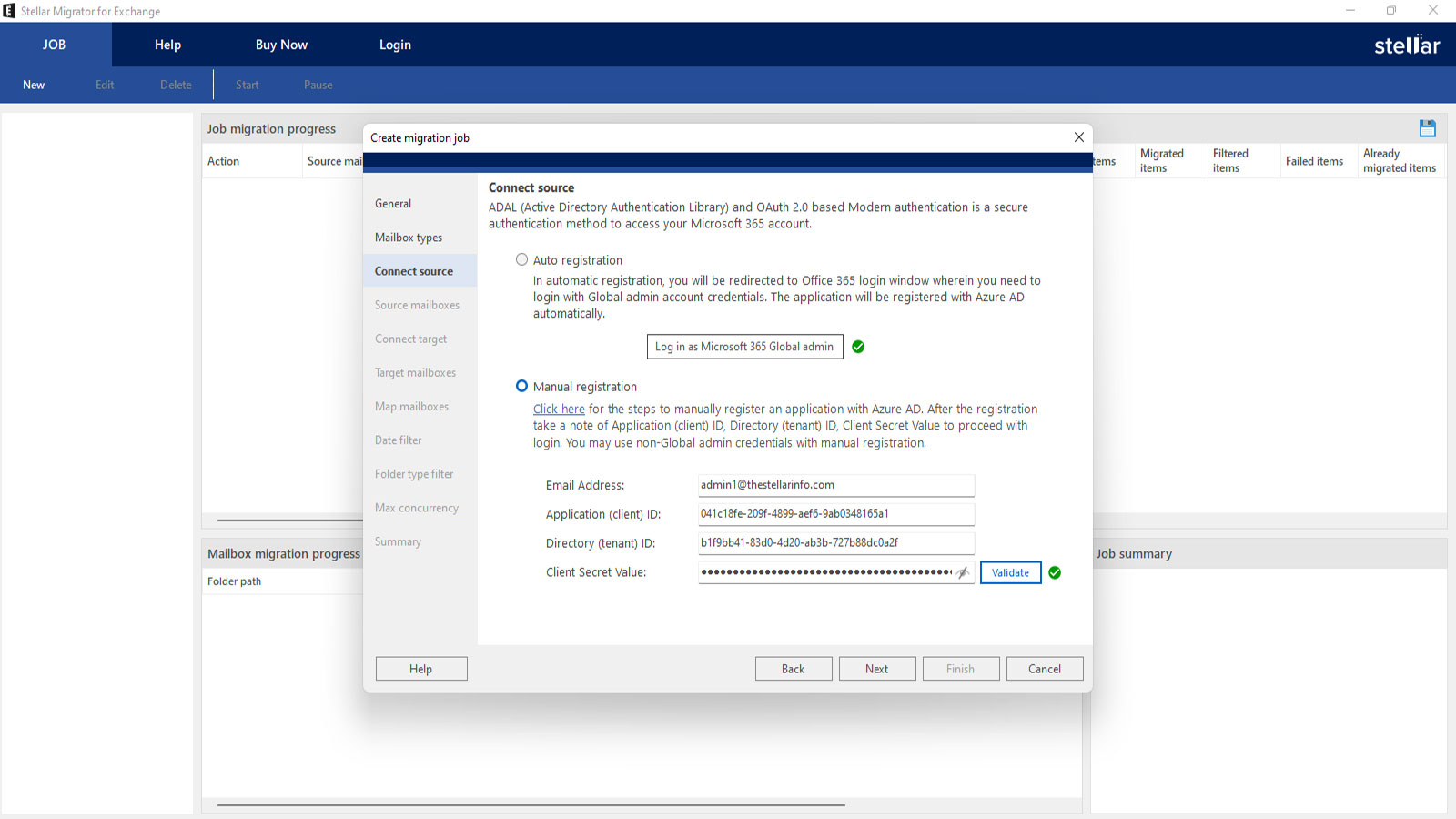
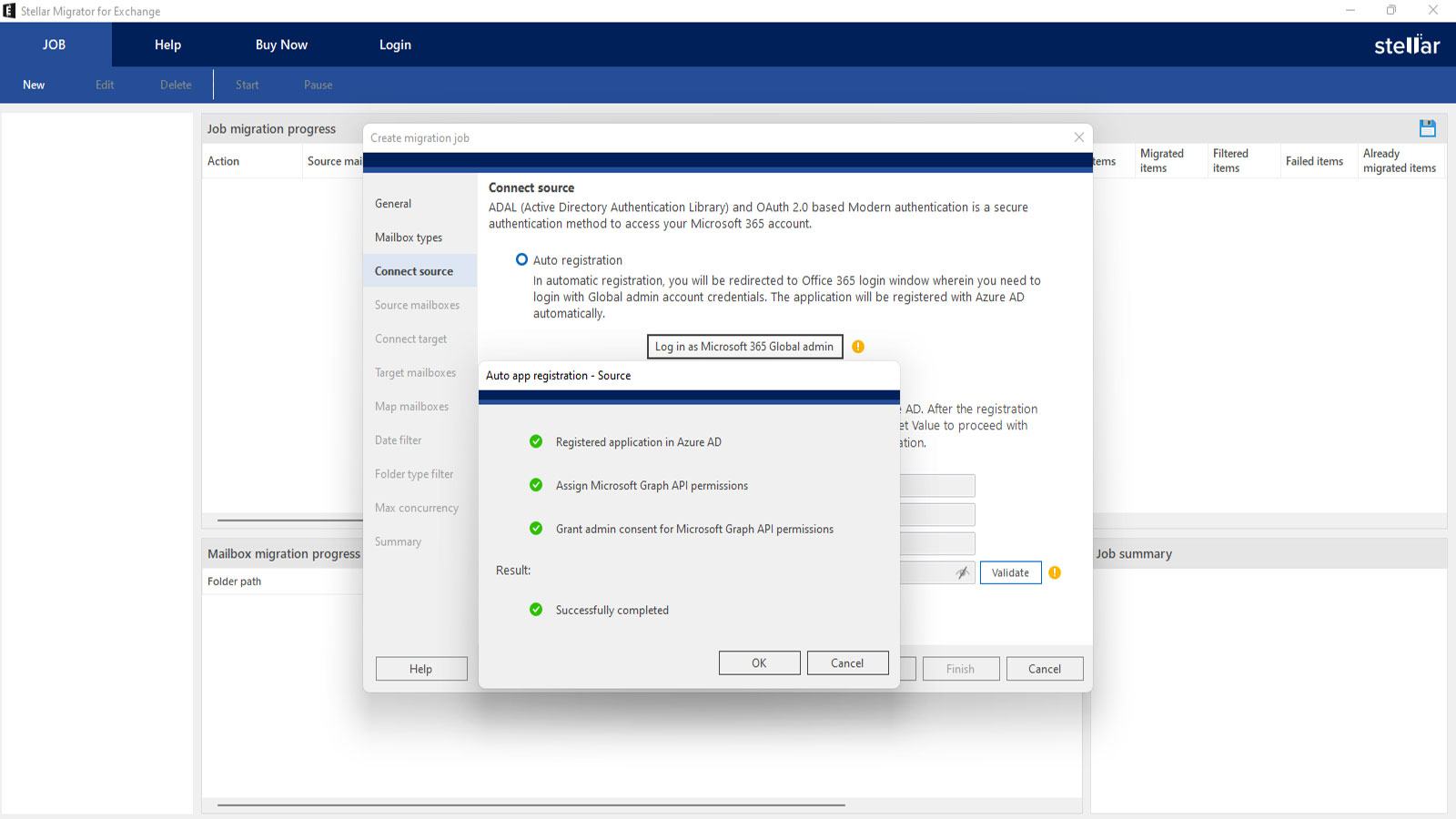
You need to connect the software to the server you want to migrate the mailboxes from. You can use Autodiscover option and connect directly to the source Exchange Server. If you use auto-registration click Log in as Microsoft 365 Global admin to load the Entra ID sign-in page.
The manual registration requires you to manually input the necessary connection details to authenticate and establish a connection with the source server.
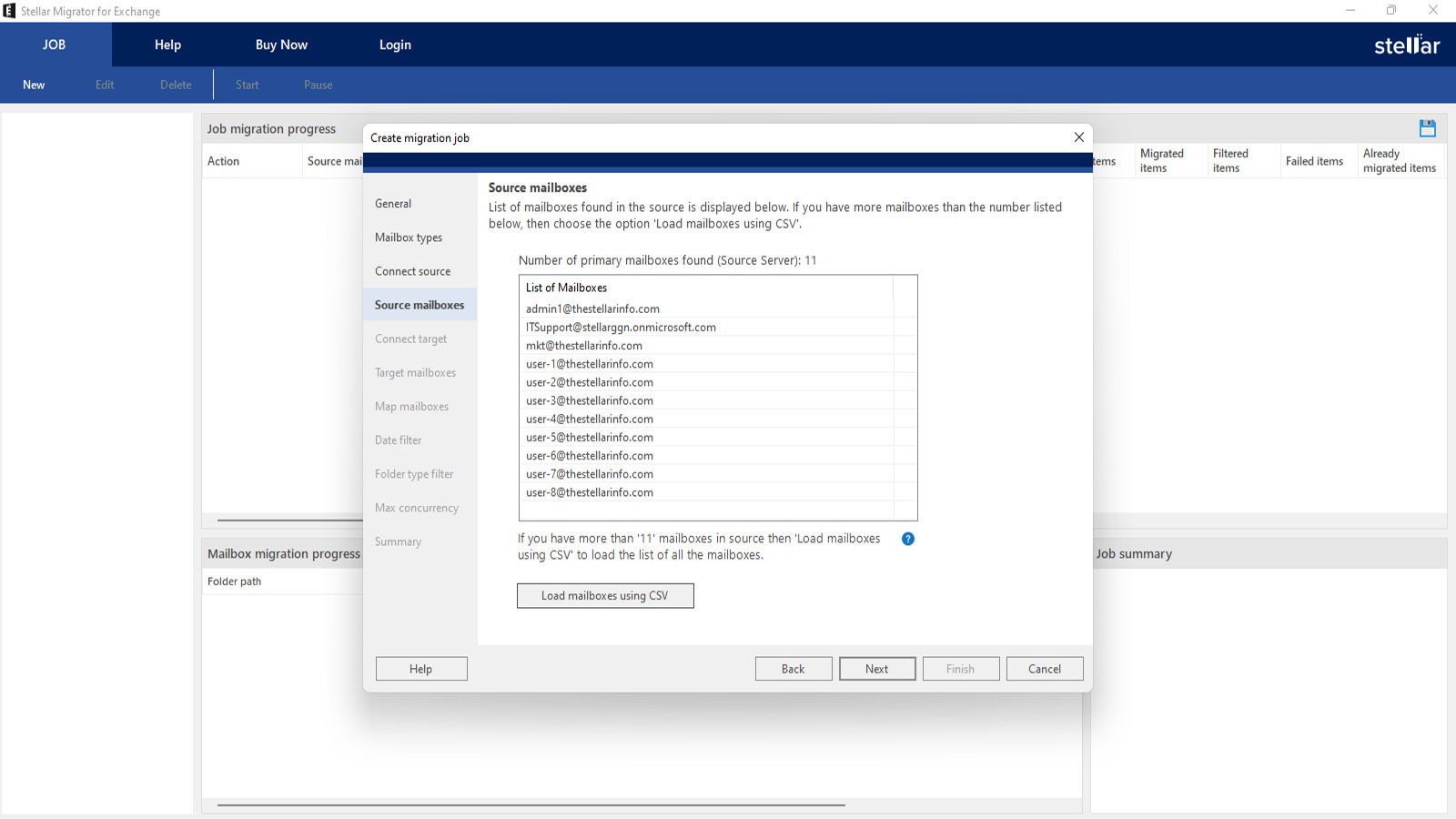
In the next step you will see a list of mailboxes from the source server. If you are unable to see all the mailboxes, choose "Load Mailboxes Using CSV" and upload a CSV file with all the mailboxes.
When the target server is Microsoft 365, you’ll need to authenticate to establish a secure connection. This uses modern authentication with ADAL (Active Directory Authentication Library) and OAuth 2.0 to safely access and transfer data from Microsoft 365 to the target environment. There are two methods to register the target connection: Auto registration and Manual registration.
You will then see the mailboxes in the destination server. Again, if you cannot see all the mailboxes in your target server you can select the Load Mailboxes using CSV to view all the mailboxes.
If the user names did not match you can manually map the mailboxes that are unmapped
In the next step you can apply a date filter to migrate the mail items from a specific date range.
Then, you need to select the folder types you want to migrate. Using this you can exclude unnecessary or irrelevant folders and make sure that only the required data is migrated.
In the next step, you need to select, how many mailboxes you want to migrate simultaneously. You can select up to 10 mailboxes.
In the next step, see the job summary and confirm all the details before starting with the migration. If you want to change anything, select that section and make the changes.
Click Finish to create the job and then click Start in the JOB ribbon to start migration process. You can pause the migration any time with the Pause button in the JOB ribbon.
Login to Licensing Server- "Login to Licensing Server" window will appear. Enter the required credentials: the Licensing Server URL (which will be selected by default), your User ID and the password. The license count and connection status will be displayed accordingly.
If you need, you can export the Job Progress and Mailbox Progress reports from a dashboard. These reports are used for tracking the migration, because they provide an overview of the job.
After completing the migration, the action field in the job progress section will change from Migrate to Don't Migrate. If the job fails to migrate, it will remain in the Migrate state, allowing you to attempt the migration again without making repeated changes
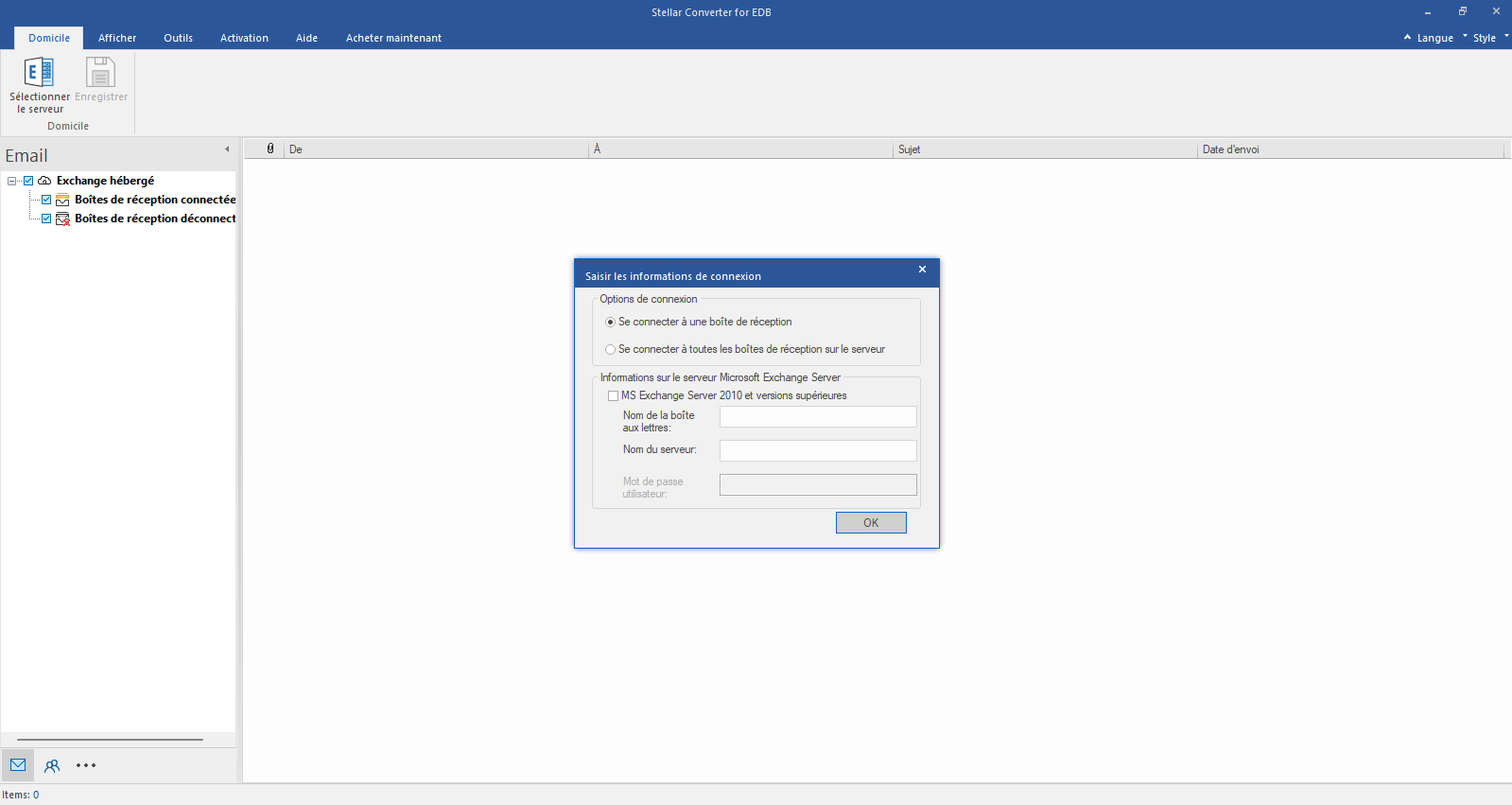
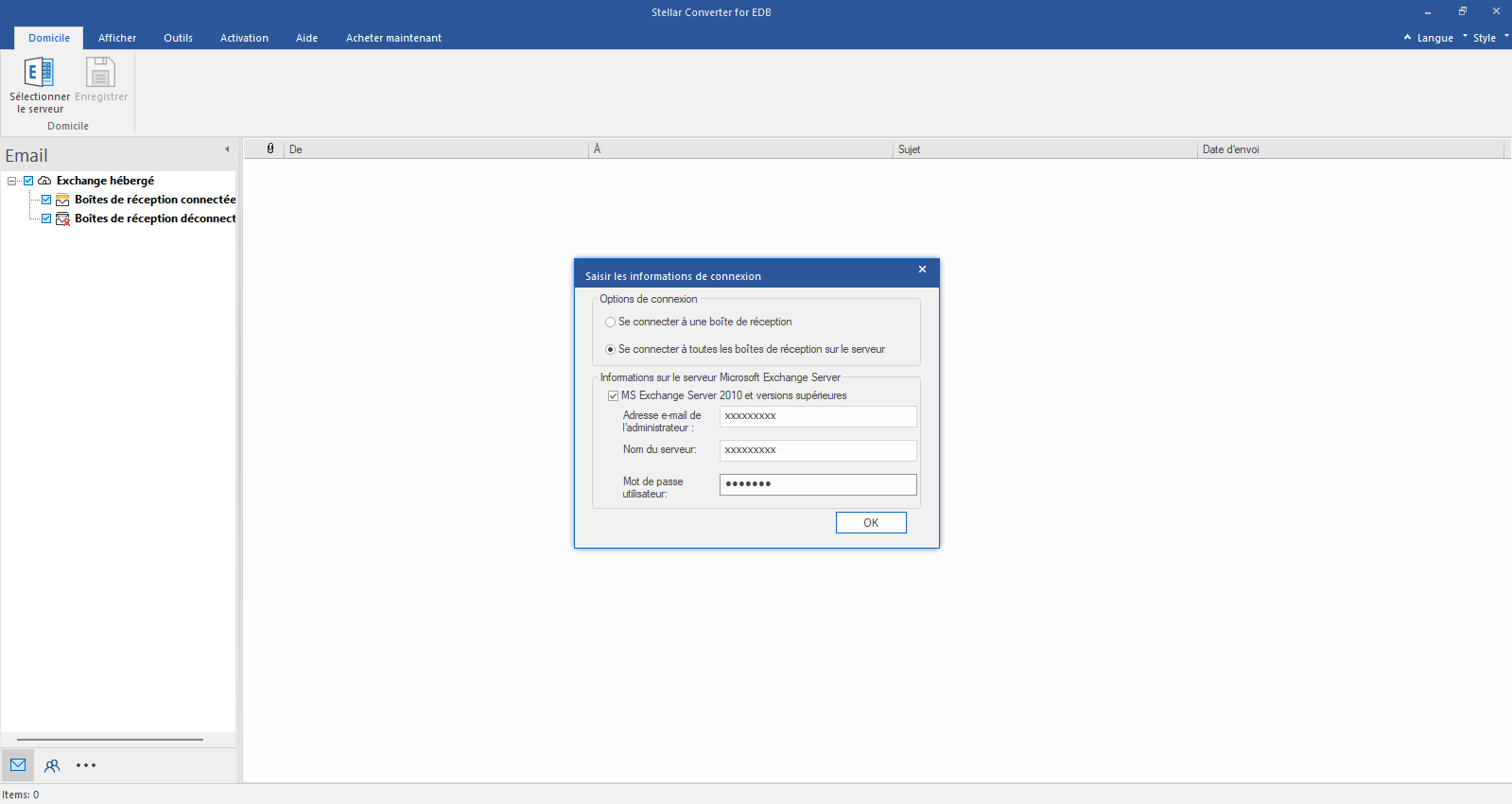
Sélectionnez Hosted Exchange pour exporter des boîtes aux lettres à partir d'un fichier EDB en ligne. Sélectionnez Connecter à une seule boîte aux lettres ou Connecter à une seule boîte aux lettres dans les options de connexion.
Saisissez le courriel de l'administrateur et le nom du serveur (pour Exchange 5.5, 2000, 2003, 2007) ou cochez la case "Exchange Server 2010 and higher" pour saisir le courriel de l'administrateur, le nom du serveur et le mot de passe (pour MS Exchange 2010, 2013, 2016 et 2019). Cliquez sur OK.
Une fois la connexion à Exchange Server établie, une liste des boîtes aux lettres connectées et déconnectées s'affiche dans la fenêtre suivante. Cliquez sur "OK" pour continuer.
Vérifiez l'aperçu de toutes les boîtes aux lettres - courriels, calendrier, contacts, etc.
Cliquez sur Enregistrer dans le ruban Démarrer et sélectionnez l'option Enregistrer sous PST. Cliquez sur "Suivant" pour continuer.
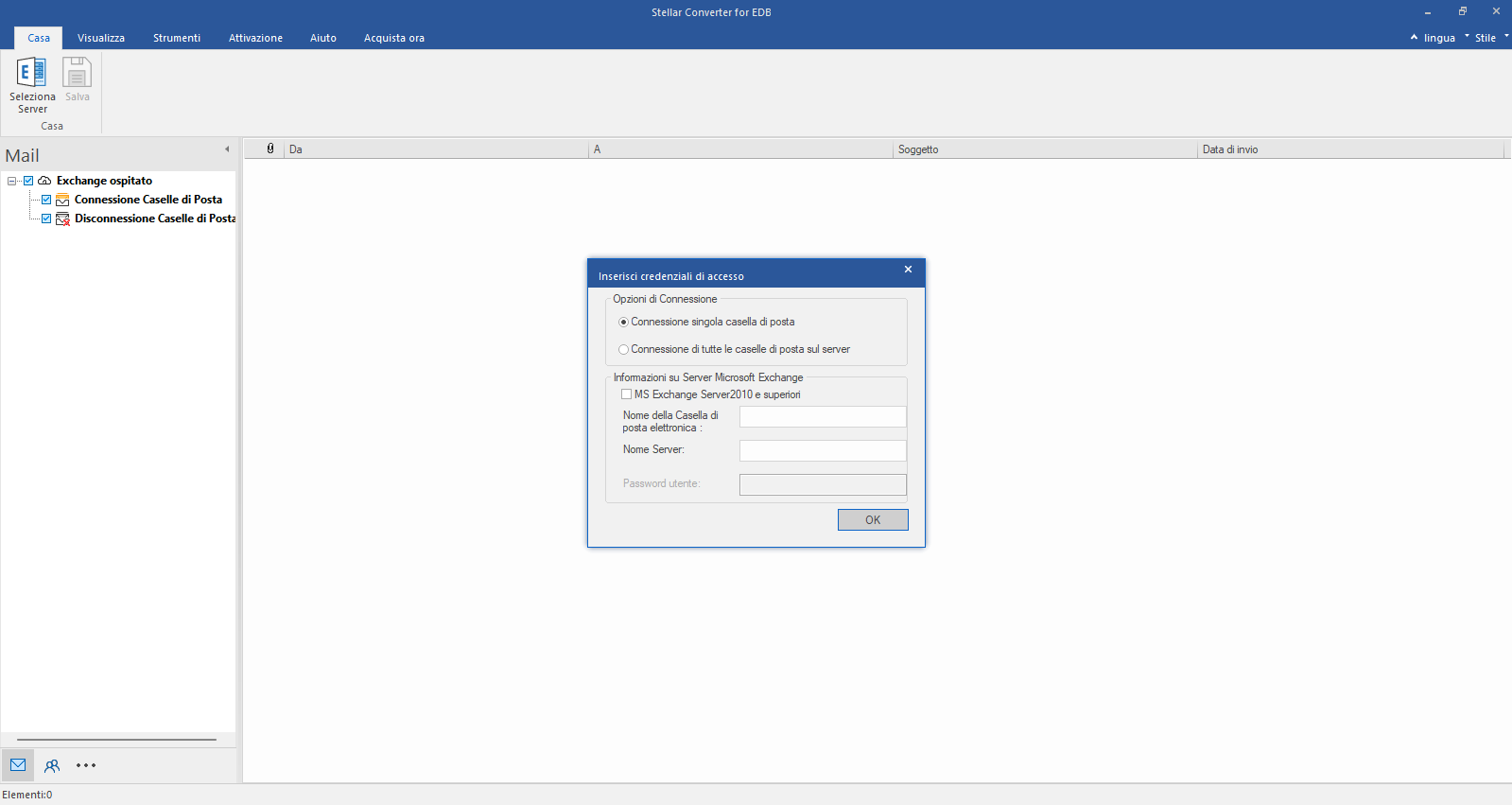
Selezioni Hosted Exchange per esportare le caselle postali da un file EDB online. Selezioni Connetti a una singola casella postale o Connetti a una singola casella postale dalle opzioni di connessione.
Inserisca il nome dell'amministratore e del server (per Exchange 5.5, 2000, 2003, 2007) o selezioni la casella di controllo "Exchange Server 2010 e superiore" per inserire l'e-mail dell'amministratore, il nome del server e la password (per MS Exchange 2010, 2013, 2016 e 2019). Clicchi su OK.
Una volta stabilita la connessione a Exchange Server, nella finestra successiva viene visualizzato un elenco di caselle postali collegate e scollegate. Clicchi su "OK" per continuare.
Controlli l'anteprima di tutte le caselle di posta elettronica - e-mail, calendario, contatti, ecc.
Clicchi su Salva nella barra multifunzione Avvio e selezioni l'opzione Salva come PST. Clicchi su "Avanti" per continuare.
Seleccione Hosted Exchange para exportar buzones desde un archivo EDB en línea. Seleccione Conectarse a un único buzón o Conectarse a un único buzón en las opciones de conexión.
Introduzca el correo electrónico del administrador y el nombre del servidor (para Exchange 5.5, 2000, 2003, 2007) o marque la casilla "Exchange Server 2010 y superior" para introducir el correo electrónico del administrador, el nombre del servidor y la contraseña (para MS Exchange 2010, 2013, 2016 y 2019). Haga clic en Aceptar.
Una vez establecida la conexión con Exchange Server, en la siguiente ventana aparecerá una lista de los buzones conectados y desconectados. Haga clic en "Aceptar" para continuar.
Compruebe la vista previa de todos los buzones: correos electrónicos, calendario, contactos, etc.
Haga clic en Guardar en la cinta Inicio y seleccione la opción Guardar como PST. Haga clic en "Siguiente" para continuar.
Wählen Sie Hosted Exchange, um Postfächer aus einer Online-EDB-Datei zu exportieren. Wählen Sie Verbinden mit einem einzelnen Postfach oder Verbinden mit einem einzelnen Postfach aus den Verbindungsoptionen
Geben Sie admin und den Servernamen ein (für Exchange 5.5, 2000, 2003, 2007) oder aktivieren Sie das Kontrollkästchen "Exchange Server 2010 und höher", um admin E-Mail, Servernamen und Passwort einzugeben (für MS Exchange 2010, 2013, 2016 und 2019). Klicken Sie auf OK.
Sobald die Verbindung zu Exchange Server hergestellt ist, wird im nächsten Fenster eine Liste der verbundenen und nicht verbundenen Postfächer angezeigt. Klicken Sie auf "OK", um fortzufahren.
Prüfen Sie die Vorschau aller Postfächer - E-Mails, Kalender, Kontakte, etc.
Klicken Sie im Menüband Start auf Speichern und wählen Sie die Option Als PST speichern. Klicken Sie auf "Weiter", um fortzufahren.
*Sign Up for a Free Demo and Start Your PST to Office 365 Migration